*Troubleshooting
*Line Stats
*DSL Speeds
*Troubleshooting WiFi
*Restart your modem periodically
*Home Wiring
*Tips (DSL)
*[https://www.ncf.ca/ncf/dg/index.jsp?dg=82 Help Desk Discussion Group- DSL only]
Your DSL modem and Bell’s DSLAM continuously monitor the quality of your DSL line. You can obtain line statistical information from your modem to view your line quality and the goodness of your service.
Bell is responsible for the quality of your line and it is worth noting that most of your monthly payment to NCF goes to Bell to provide DSL service on your line.
=How to interpret line stats=
== Speed (Rate) ==
Download speed (measured as Mbps, Mb/s, kbps, kb/s) is faster than upload speed. You can confirm this number by doing a speed test.
== Attenuation ==
Attenuation is a measure (in dB) of how far (cable length, not line-of-sight) you are from the Bell equipment (DSLAM). Note that ‘’‘Lower is better’‘’ as it indicates a shorter cable length.
| Attenuation | Rating |
|---|---|
| 0 - 40 | Excellent |
| 40 - 50 | Good |
| 50 - 60 | Fair |
| >60 | Poor |
== Signal-to-Noise Ratio (SNR or Noise Margin) ==
Signal-to-Noise Ratio is a measure (in dB) of how much electrical noise exists on your line. Too much noise (low SNR) can affect DSL signal. ‘’‘Higher is better’‘’ as it means you have more signal than noise.
| SNR | Rating |
|---|---|
| >20 | Excellent |
| 20-10 | Good |
| 10-6 | Fair |
| 6-0 | Poor |
== Errors ==
The error figures are an indication of how many packets had to be re-transmitted because they contained an error and may be caused by line noise. Error counts are cumulative since the time DSL sync was last obtained. To reset the error counts, do a software restart of your modem, or power cycle your modem, or disconnect your DSL line for a minute or two.
The significance of error counts is unclear and may be meaningless. Some modems may misreport errors and even with errors, your service may be fine.
=Line Profile stats reported by Bell=
You can see your stats as seen by NCF [https://www.ncf.ca/ncf/home/tools/dslLineStats.jsp here]. Note the date on that page that says when they were collected.
==Line Profile stats reported by Bell==
{|
{| class=“wikitable”
|- style=“background:#efefef;”
! colspan=“3” | Line Operational Status
! colspan=“4” | 613-xxx-xxxx (DSL phone number, may or not be your Bell #)
|-
|- style=“vertical-align: top;”
| ‘’‘Line Status:’‘’
| ‘’‘In Service’‘’ (preferred)
‘’‘Out of Service’‘’ (trouble!)
| ‘’‘UpTime:’‘’
| (not a useful field, usually not populated by Bell) |
|---|
| - style=“vertical-align: top;” |
| ‘’‘Line Profile Name:’‘’ |
| Example: ‘’‘al1_d6016-384_u800-256’‘’ |
| ‘’‘Last State Change:’‘’ |
| ‘’‘mm/dd hh:mm:ss’‘’ (last time the Line Profile was provided) |
| - |
| - style=“vertical-align: top;” |
| ‘’‘DLM State:’‘’ (Dynamic Line Manager, a process on the DSLAM) |
| ‘’‘Active or OPERATIONS’‘’ (preferred) |
‘’‘PENDING’‘’ (new line activation)
‘’‘Disabled’‘’ (manual handling)
‘’‘Failed’‘’ (DLM can’t set a Line Profile)
‘’‘Unstable’‘’ (DLM is unable to set a Line Profile)
| ‘’‘Equipment Type:’‘’
(DSLAM)
| Example: ‘’‘7330_REM’‘’ There are many types of DSLAMs deployed by Bell in the field. The above was built by Newbridge/Alcatel-Lucent, today’s Nokia |
|---|
| } |
{| class=“wikitable”
|- style=“vertical-align: top;”
|- style=“background:#efefef;”
| ‘’‘Operational Status’‘’
| ‘’‘Speed (Kbs)’‘’
| ‘’‘Relative Capacity Occupation (%)’‘’
| ‘’‘Noise Margin (0…31 dB)’‘’
| ‘’‘Signal Power (0…20 dBm)’‘’
| ‘’‘Attenuation (0…60 dB)’‘’
| ‘’‘Block count’‘’ |
|---|
| - style=“vertical-align: top;” |
| ‘’‘UpStream’‘’ (upload) |
| Example: ‘’‘797.0’‘’ |
| ! rowspan=“2” |
| ! rowspan=“2” |
20 dB: Excellent
20 - 10 dB: Good
10 - 6 dB: Fair
< 6 dB: Poor
! rowspan=“2” | Lower is better
Tied to RCO, SNR & Attenuation
! rowspan=“2” | Lower is better
< 40 dB: Excellent
40 - 50 dB: Good
50 - 60 dB: Fair
60 dB: Poor
! rowspan=“2” | Some number that is not very useful
|-
|- style=“vertical-align: top;”
| ‘’‘DownStream’‘’
(download)
| Example: ‘’‘6014.0’‘’
|}
|}
=How to obtain line stats from your modem=
==SpeedTouch 585 or 516v6==
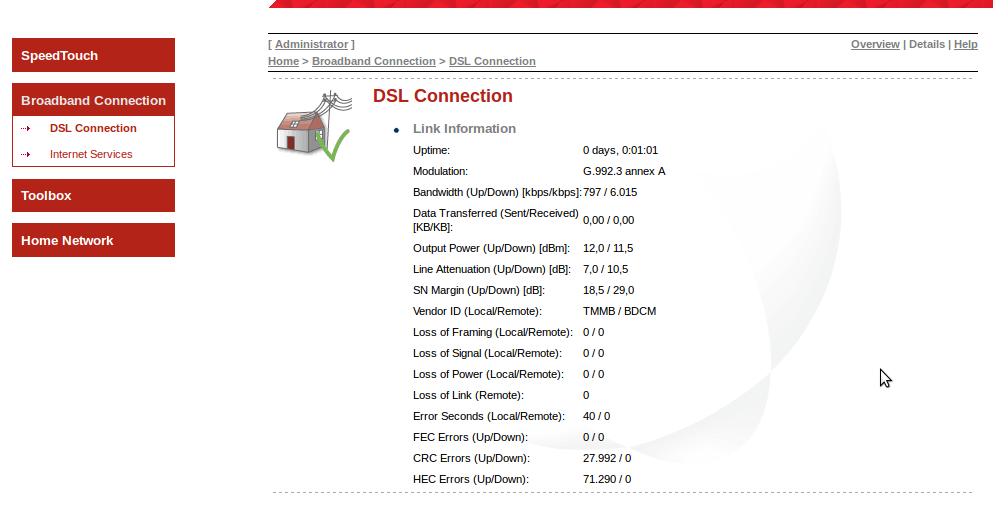
¶ Log into the web interface of your modem (how to log in)
¶ In the left column, click on ‘Broadband Connection’
¶ In the left column, click on ‘DSL Connection’
¶ In the top-right area, click on ‘Details’
Depending on your modem model and configuration, the numbers may be displayed with commas and periods in the European manner, which is the reverse of what is common in North America. For example: 1,000.12 for ‘one thousand decimal 12’ may be displayed as ‘1.000,12’.
==SpeedTouch 516v5==
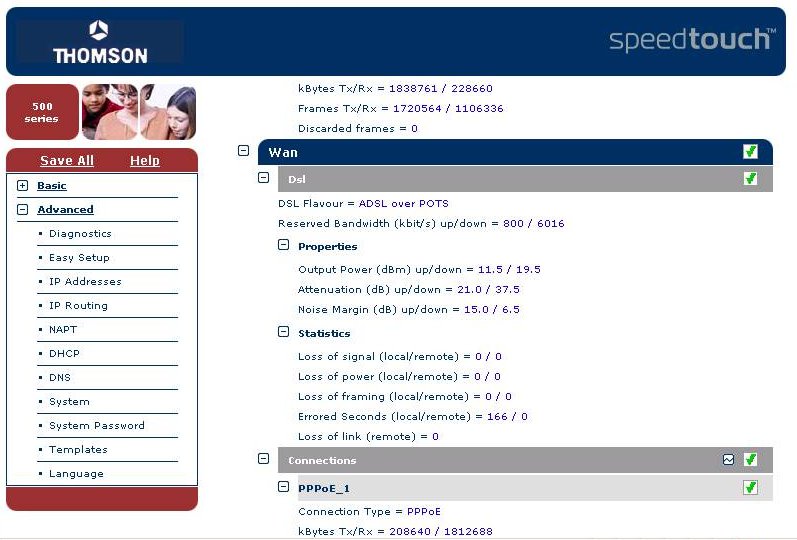
¶ Log into the web interface of your modem (how to log in)
¶ In the left column, click ‘Advanced’
¶ Below that click ‘Diagnostics’
¶ Above click the + sign beside ‘Expand All’
¶ Scroll down to the section ‘Wan’ … ‘Dsl’
==TP-Link 8816, 8901G or 8951ND==
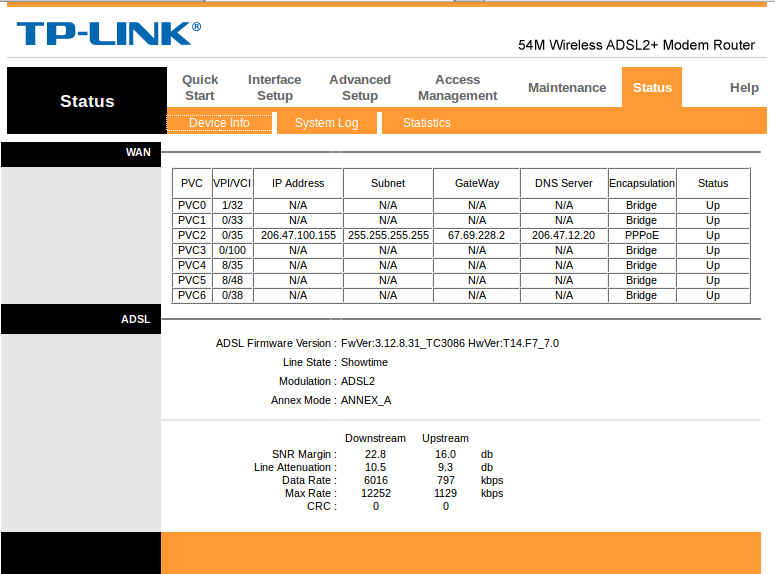
These models of TP-Link modems all have similar interfaces:
¶ Log into the web interface of your modem (how to log in)
¶ Click on ‘Status’
¶ Click on ‘Device Info’
==TP-Link 8950ND==
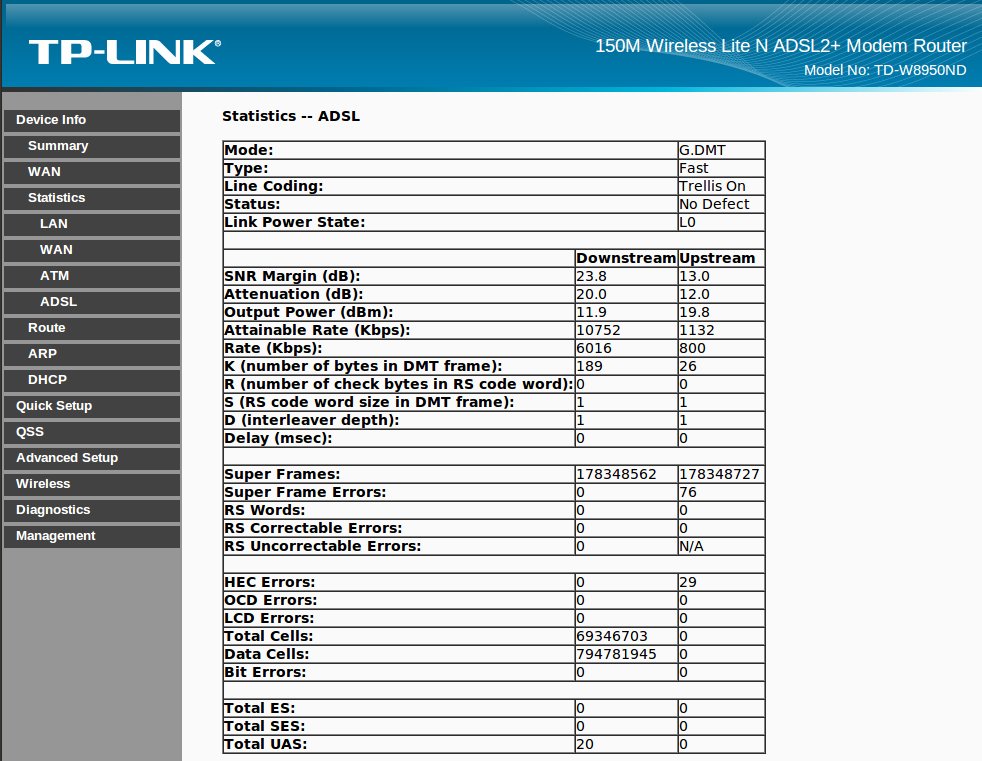
¶ Log into the web interface of your modem (how to log in)
¶ Click on ‘Device info’
¶ Click on ‘Statistics’
¶ Click on ‘ADSL’
==SmartRG 505n==
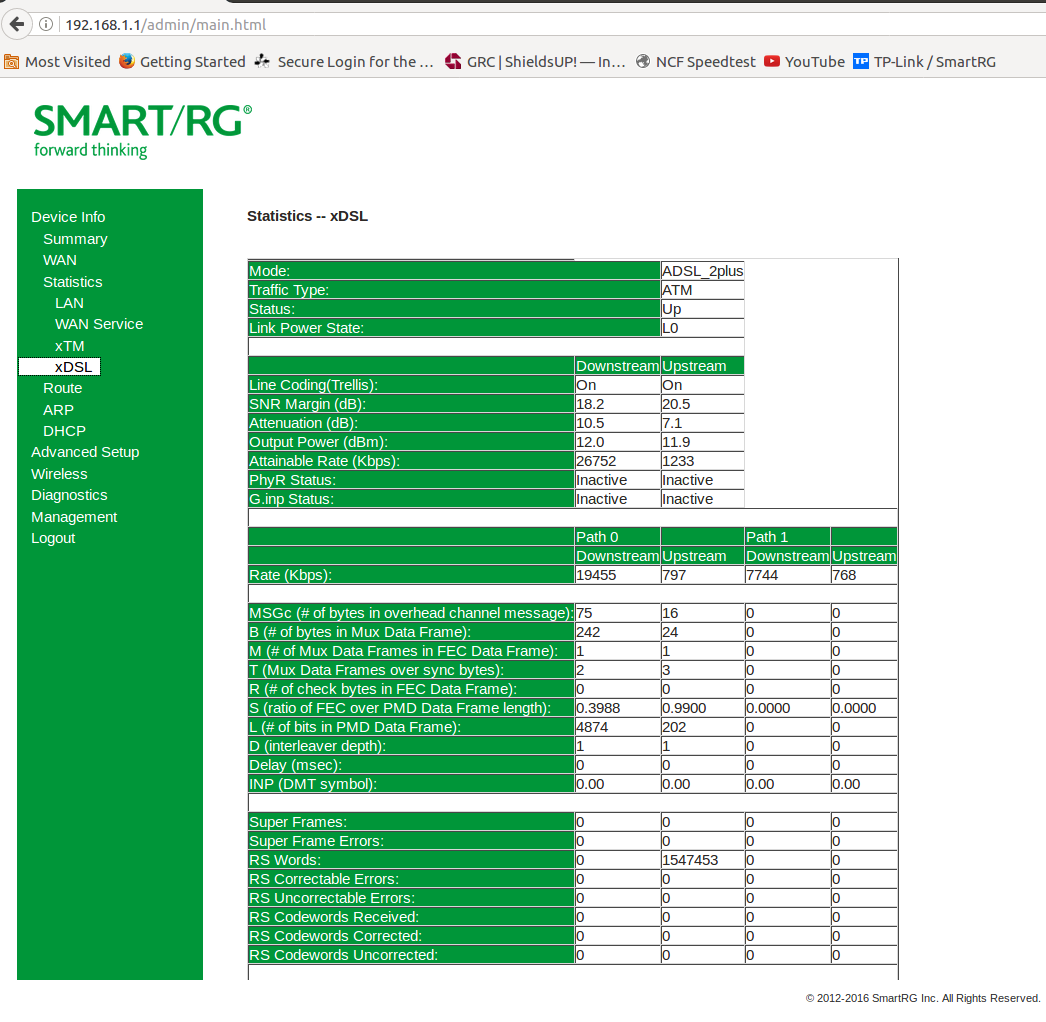
¶ Log into the web interface of your modem (how to log in)
¶ Click on ‘Device info’
¶ Click on ‘Statistics’
¶ Click on ‘xDSL’
==OvisLink OV804==
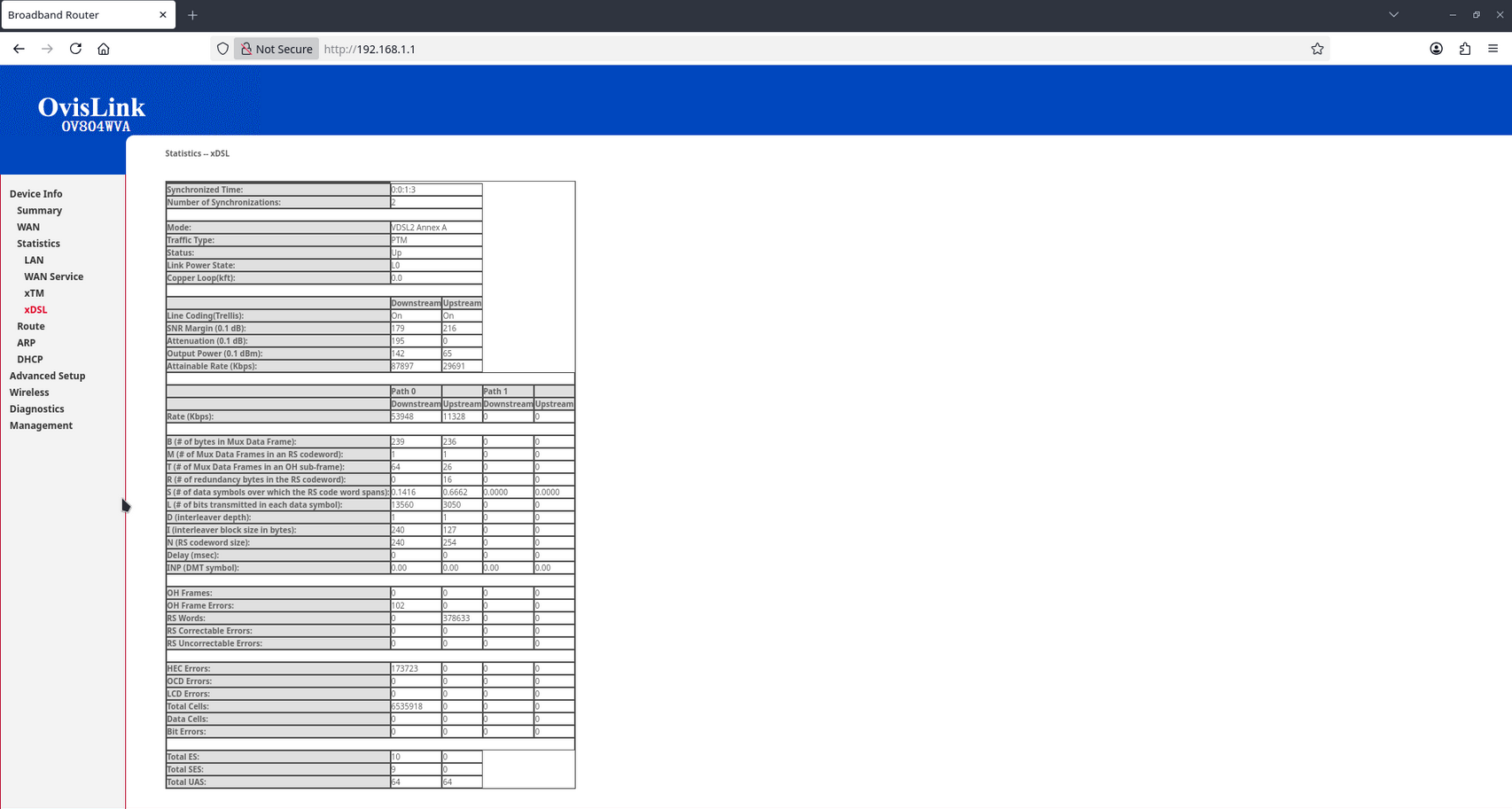
¶ Log into the web interface of your modem (how to log in)
¶ Click on ‘Device info’
¶ Click on ‘Statistics’
¶ Click on ‘xDSL’
=See also=
*Speed