Creating your own website can be a great deal of fun and a good way to share pictures, text and ideas with the whole world. All NCF accounts automatically include web space.
¶ General
There is no limit on the size of your web space as long as there is enough space for everybody. If space becomes an issue, NCF will contact the people who use the most space.
To create a website you need to do four things:
- Create the web pages offline and link them together to form a website
- Test your web pages offline to make sure they work
- Upload them to your space on the NCF web server and then they will be visible to everyone on the internet
- Validate your web pages to identify any errors
¶ Creating web pages
When someone visits your website their browser will ask the server for the home page first, which is called index.html or index.htm. If that file does not exist, the web server will display a list of the files in the directory.
When you design your website make sure you create a home page and call it index.html, so people visiting your website will start by seeing that page.
Web pages are written in Hyper Text Markup Language (HTML). There are basically two ways to write HTML files:
- Writing them by hand
- Using a WYSIWYG (What-You-See-Is-What-You-Get) HTML page creator.
¶ Hand coding HTML
Hand coding HTML requires some skill and practice to learn, but can be quick and rewarding to do, once you have learned how. Most professionally-designed websites these days are hand-written. There are many guides available on the internet, in bookstores and libraries to help you learn to write HTML.
HTML is just text, so any plain text editor can be used to write HTML by hand, although the best ones are those that offer syntax highlighting to show mistakes quickly with text colours.
Some good free software text editors with syntax highlighting include:
¶ WYSIWYG HTML page creators
There are also many software applications to automate the task of making HTML pages which allow beginners to make beautiful web pages without learning how to hand code HTML. If you are designing a complex web site with many components or want to save the time learning hand coding HTML, these tools can be helpful.
Commercial, proprietary web page creation software applications, like Adobe Dreamweaver CC, can be purchased or rented by the month, but many office applications, such as word processors, can also produce documents in HTML format. To write a web page just select “save as HTML”.
One word processor that can do this is the free software, cross platform LibreOffice Writer:
¶ Testing webpages
Once you have written your web pages, open them in your web browser while still offline, to test them and see how they look and make sure that they link together.
¶ Upload your web pages
The process of transferring a file from your computer to your web space (on NCF’s computer) is called uploading.
¶ How to upload files
There are several ways to upload files, including:
- NCF’s Web File Manager - We suggest using NCF’s “Web File Manager” (because it requires no set-up) to upload your files. Go to the StartPage and click on Web File Manager under ‘Tools’ in the right column. It is kind of basic, but you’ll see simple tools for uploading files. There’s an FAQ link on its page that explains how it works.
Note: The Web File Manager cannot transfer files larger than 2MB. For large files, use FTP.
- File Transfer Protocol (FTP) - If you are using an FTP program, use the following settings:
- Host Name/Address: ftp.ncf.ca (IP 172.83.172.13)
- User ID: accountID
- If a selection is available then choose “passive mode”.
¶ FTP clients
Some FTP clients that have been tested and work well with NCF web hosting are:
Free software
Notes:
- Linux users should download these from their distribution repositories.
- gFTP users should set FTP→ Preferences→ Preserve File Permissions→ uncheck this box, or else the uploaded files will not be able to be viewed.
¶ SFTP (SSH)
The NCF FTP server now supports SSH transfers (SFTP)
If you are using gFTP, change the port from 21 to 22, and the protocol to SSH2.
If you use the FileZilla Quickconnect bar, just specify “sftp://ftp.ncf.ca” for the Host field. FileZilla does not seem to need the port specified as 22.
¶ Secure FTP
The NCF FTP server now supports TLS explicit mode. If you previously used NCF FTP to upload to your web space, you may wish to enable TLS in your client, if it is supported.
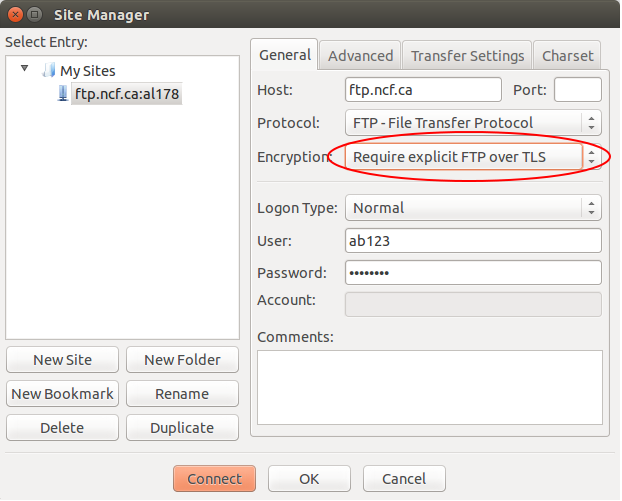
If you are using FileZilla, this is as simple as changing the encryption type from “Use Plain FTP” to “Require explicit FTP over TLS”.
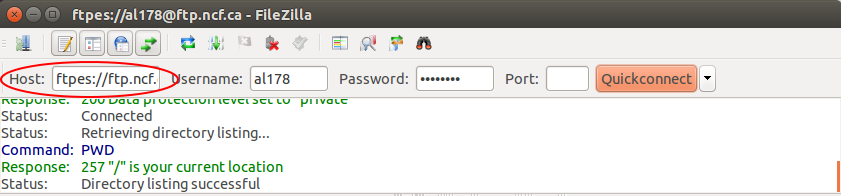
If you use the FileZilla Quickconnect bar, just specify “ftpes://ftp.ncf.ca” for the Host: field:
Note: If you are using an older FTP client that only supports legacy SSL on port 990, that will not work. You must use a client that understands how to use “Explicit TLS” on port 21.
¶ FTP certificates
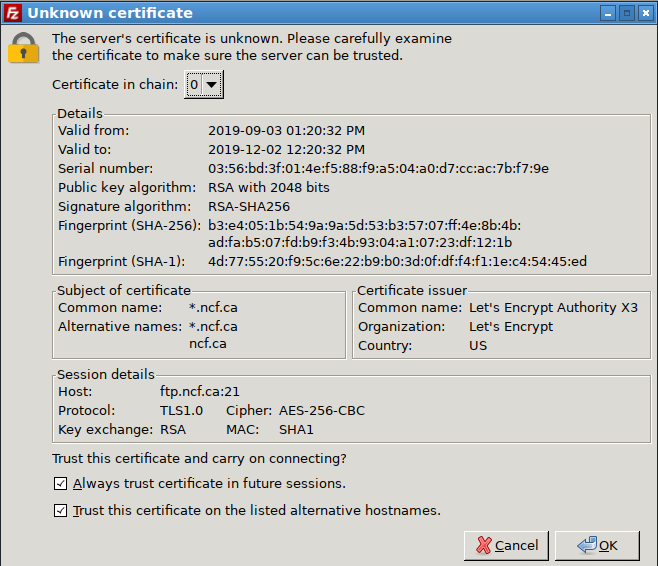
The first time you connect with an FTP client, or when the certificate has been updated, you will receive a warning from your FTP client about an “unknown certificate”. If the certificate date is correct and the host is ftp.ncf.ca then you can accept the certificate and continue to upload your files.
¶ Viewing your website on the internet
¶ Location of your web pages (URL)
Your web space is at https://web.ncf.ca/youraccountID, where youraccountID is replaced by your NCF accountID. If you have an email alias, you can use that too. For example, if your accountID is ab123 and your email alias is ‘fred’, then your web space would be at:
and also at:
¶ Validating your pages
Newly uploaded pages should be validated to make sure the coding on them is correct and will display correctly in reader’s browsers. You can do this using a free online tool at:
Just copy your page’s URL into the box, hit “return” and it will test your page and list any errors that need correcting. If there are errors, fix them on the original file and then upload the newly corrected version.
¶ Organizational Accounts at NCF
To transfer files to your organization web space, use the following settings on your FTP program:
- Host Name/Address: ftp.ncf.ca
- User ID: accountID-n (‘n’ is a letter code assigned to the organization, usually the first letter of the directory name)
Your web site will be found at:
¶ Tools for web page authors
NCF’s “comment-taker” utility provides a way for readers of your web page to send you email without you having to expose your email address to spammers. Have a look at the Comment-Taker FAQ for more information.
¶ See also
¶ External links
- A Nonprofit’s Guide to Building Simple, Low-Cost Websites
- Websites That Suck - a guide a what to avoid in website design