Ovislink OV501GF
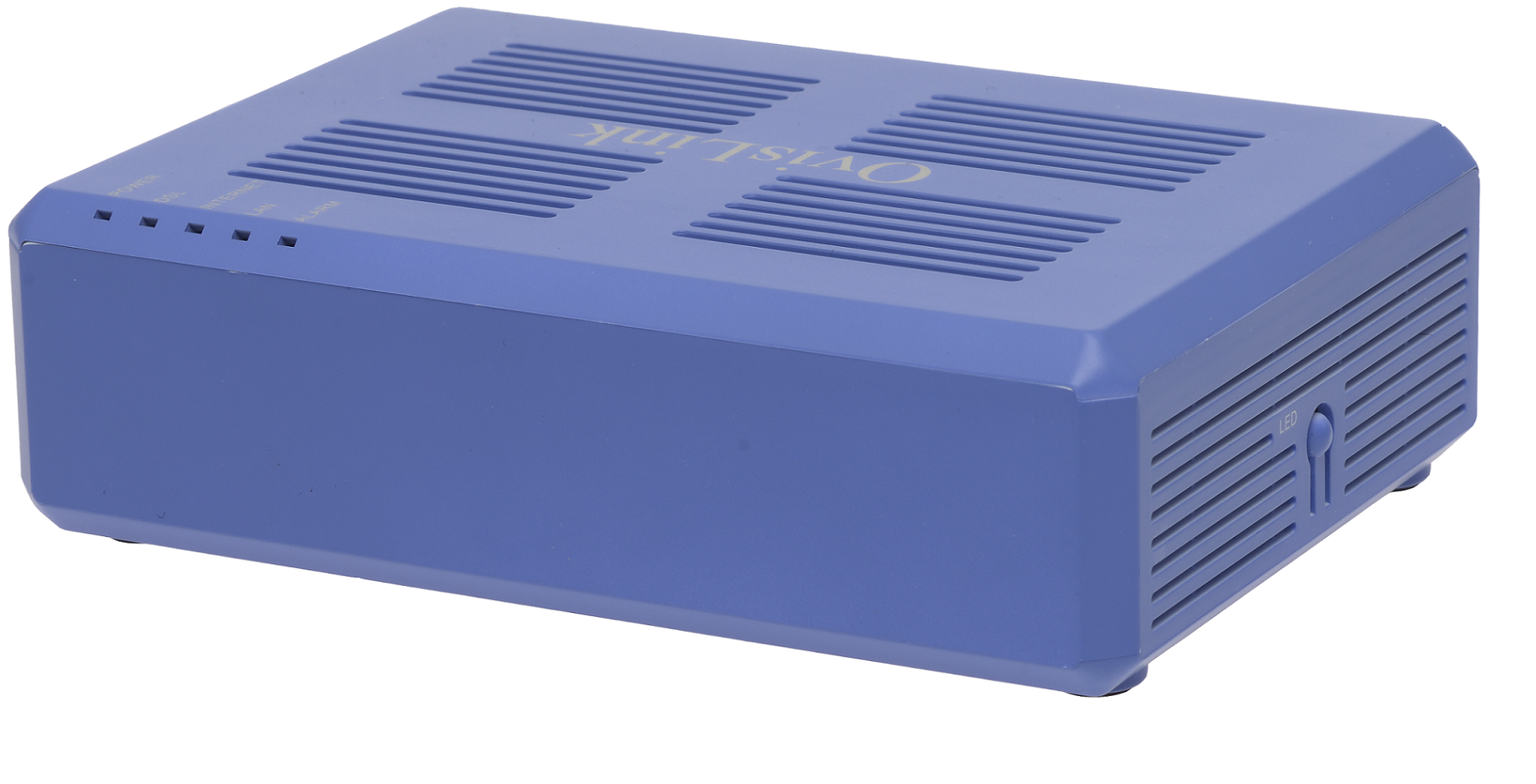
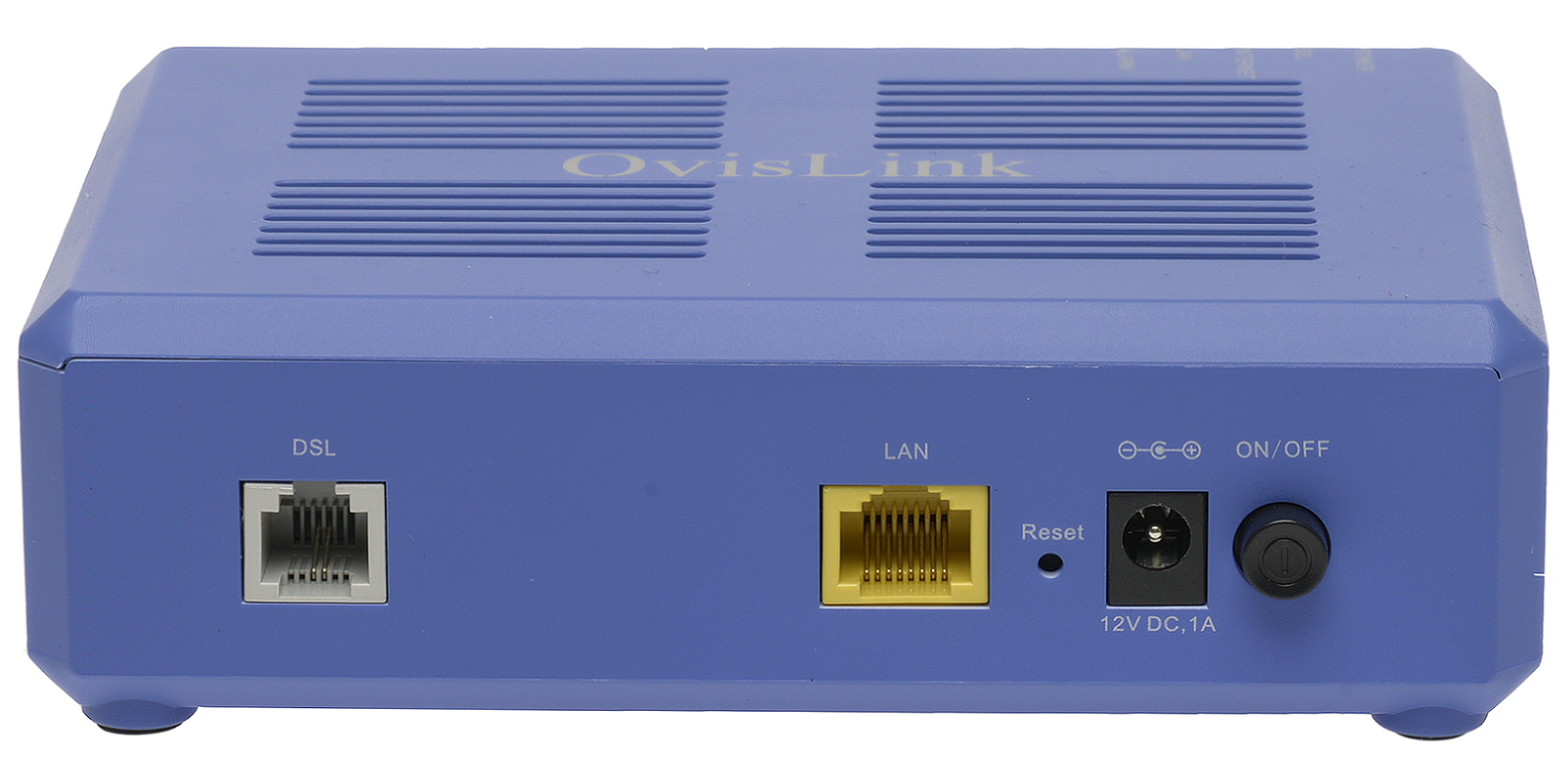
NCF Support is available to make configuring your Ovislink modem easier and to help you avoid potential mistakes.
Note: Your Ovislink OV501GF modem comes pre-configured by default in bridge mode, this means you can connect your router and log in to it to provide your NCF credentials and get internet access:
- PPPoE username: your DSL username (format: aa000@ncf.ca)
- PPPoE password: your DSL password
1. You can request a custom configuration file for your NCF DSL connection from support@ncf.ca.
- You may need an alternate means of accessing the internet to download the configuration file.
2. Call 613-721-1773 x0 to book a Modem Appointment.
If you want to confirm or modify the bridge operation settings in your Ovislink OV501GF, you might need to set a static IPv4 address manually on your computer with the gateway IP set to http://192.168.1.1 to log in to the modem, and change or confirm the next parameters.
Steps |
Menu Navigation |
Parameters |
|
|---|---|---|---|
1 |
Log into Modem |
User Name: admin Password: admin |
|
2 |
WAN Cleanup |
Advanced Setup → WAN Service |
Remove atm0.1/ptm01 from WAN Service Table |
3 |
Enable ADSL |
Advanced Setup → Layer2 Interface → ATM Interface |
Add ATM: vpi:0 vci:35 DSL Latency: FAST and INTERLEAVED DSL link type EoA |
4 |
Enable VDSL |
Advanced Setup → Layers2 Interface → PTM Interface |
Remove ptm0 with Path0 Add PTM: DSL Latency: FAST and INTERLEAVED |
5 |
Configure ADSL |
Advanced Setup → WAN Service |
Add atm0/(4_0_35) |
6 |
Configure VDSL |
Advanced Setup → WAN Service |
Add ptm0/(4_1_1)
|
7 |
Admin Password |
Management → Access Controls → Passwords |
|
8 |
Remote Access |
Management → TR-069 Client |
|
9 |
System Log |
Management → System Log → Configure System Log |
Configuration:
|
10 |
Backup Settings |
Management → Settings → Backup |
Settings -Backup
|
Steps to Configure OvisLink OV501GF for Bridge Operation
¶ See Also
- Modem Configuration - Instructions for all NCF modems.