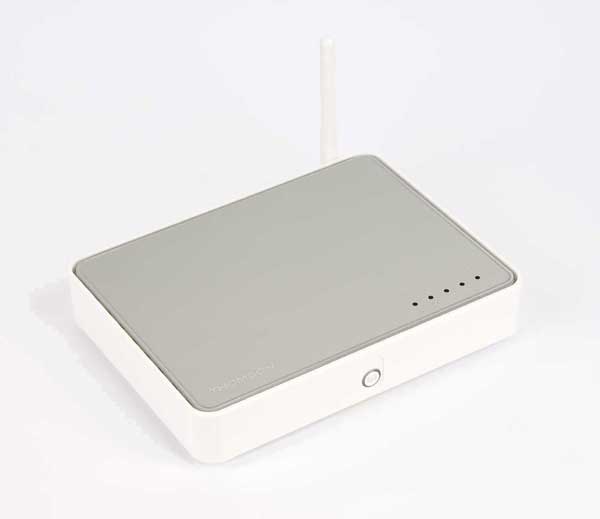
 This is the procedure NCF uses to configure Thomson/SpeedTouch 516 and 585 modems out of the box or after a factory reset. The process for older model SpeedTouch modems is similar. To learn more about configuring your particular modem, consult the manual for your modem.
¶ Beginning a Configuration
Connect the modem to power and reset it to the original factory configuration by holding the reset button for 15 seconds…
After a factory reset,
- ADSL VPI / VCI will be different from the required 0.35
- Configuration server username is “Administrator”
- Configuration server password is
- Gateway and configuration server are 192.168.1.254
- The firewall is disabled
- The modem will connect to ADSL
- The modem is not configured to authenticate for an NCF Internet connection
¶ Configure as router
- Plug in (including power and ethernet) and then turn on modem
- Open a web browser and type http://dsldevice.lan or http://192.168.1.254 in to the address bar. Press Enter. (For details, see Modem Web Interface.)
- Click Speedtouch from the menu on the left
- Click Setup in the pick a task section at the bottom of the page. This will cause a popup to come up on your screen saying welcome to … easy setup
- Click Next
- Select Router from the menu in the Service Selection window
- Click Next
- Use the drop down menu to select 0.35 in the VPI/VCI section of the Routed Internet Connections
- Confirm that PPPoE is selected
- Click Next
- In the Internet Account Settings window, enter the DSL username as issued by NCF (e.g. aa000@ncf.ca)
- Enter the DSL password twice. This password will start with the letters ncf and is not the regular NCF password for your account
- In the Access Controls window leave the username as Administrator and enter the DSL Password in the two password fields
- Click Next
- You will now see a Confirmation Page. Click Start
- You will now have to wait as the SpeedTouch configures itself. You will see a window asking you to do so.
- Re-enter the DSL modem username Administrator and the DSL password to confirm
- Click Finish
| DSL Quick Configuration Info (SpeedTouch DSL modems) |
|---|
| Modem Web Interface |
| Modem login |
| VPI / VCI (ADSL) |
| VLAN (VDSL) |
| Protocol |
| DSL username |
| DSL Password |
| Firewall |
| Wireless |
| Web Browsing Interception |
¶ Enable wireless functions (if supported)
- Open web browser and type http://dsldevice.lan in to the address bar. Press Enter.
- Enter the username Administrator and the DSL password
- Click on Home Network in the left column
- Click on Wlan: Speedtouch…
- Wireless Access Point menu will appear. At the top right, click Configure
- In the Configuration section, remove the checkmark beside Interface Enabled to disable wireless, or add the checkmark to enable it
- If enabled, NCF recommends WPA-PSK with version WPA2.
- Click Apply. Consult the modem manual for information about how to configure computers to communicate wirelessly to the modem.
The WPA-PSK wireless key code is printed on the label on the bottom of the modem (also on a sticker on the Set-up CD included with the modem).
NOTE: Since in the past the default Thompson wireless keys have been easy to hack it is recommended that you change the wireless key.
¶ Enable the modem firewall
- Open web browser and type http://dsldevice.lan in to the address bar. Press Enter.
- Enter the username Administrator and the DSL password
- Click on Toolbox in the left column
- Click on Firewall
- Click on Configure in the top right
- Menu called security settings will appear. Click the button called Standard
- Click Apply. This will redisplay your settings so that you can confirm.
¶ Set the time server to National Research Council (NRC)
- Click on Speedtouch on the left column
- Click on Configuration
- Click on Configure in the top right
- In the section called Time Configuration check the auto-configuration checkbox
- Change the time zone to -5 Eastern Time
- Check Summertime if it is currently Daylights Savings Time
- In the box called Time Server 1 enter time.nrc.ca
- Click Apply
¶ Changing WiFi Password on SpeedTouch ST585
NCF recommends making wifi changes on your modem from a computer that is connected via an ethernet cable to one of the LAN ports behind the SpeedTouch.
1. Open web browser and type http://192.168.1.254 or http://dsldevice.lan in to the address bar. Press Enter.
2. Enter the username Administrator and the DSL password.
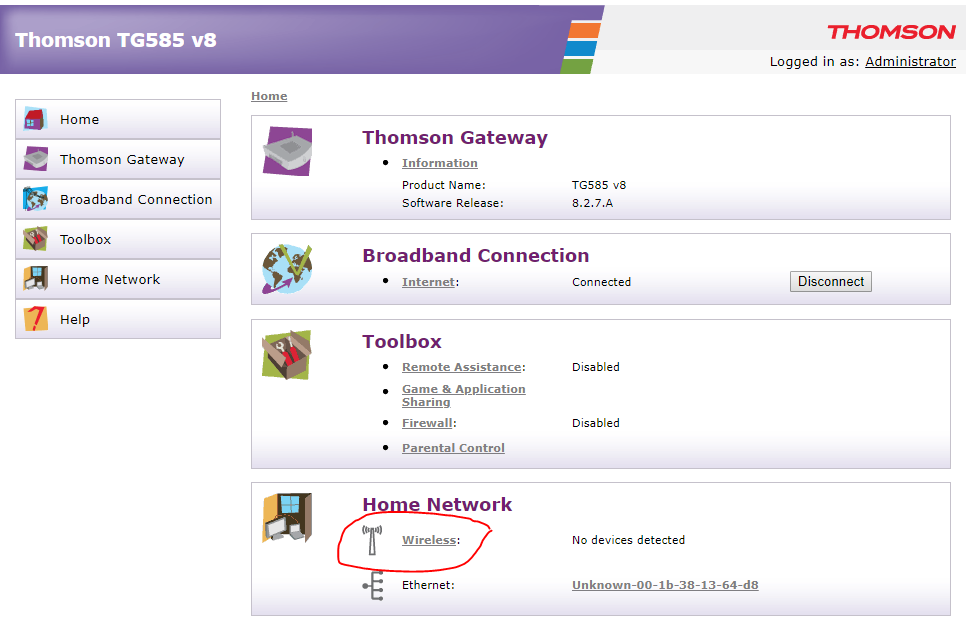
3. From the Home Page, select the link Wireless towards the bottom of the page.
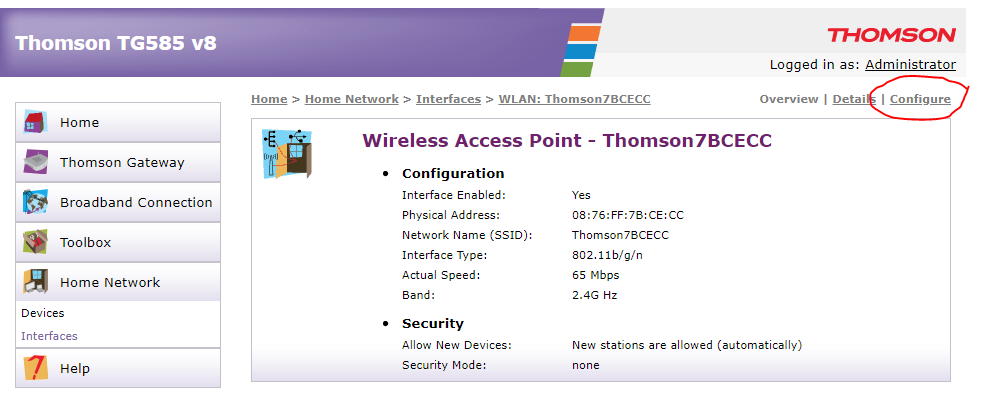
4. From the Wireless Access Point page, click on the Configure link at the top right corner.
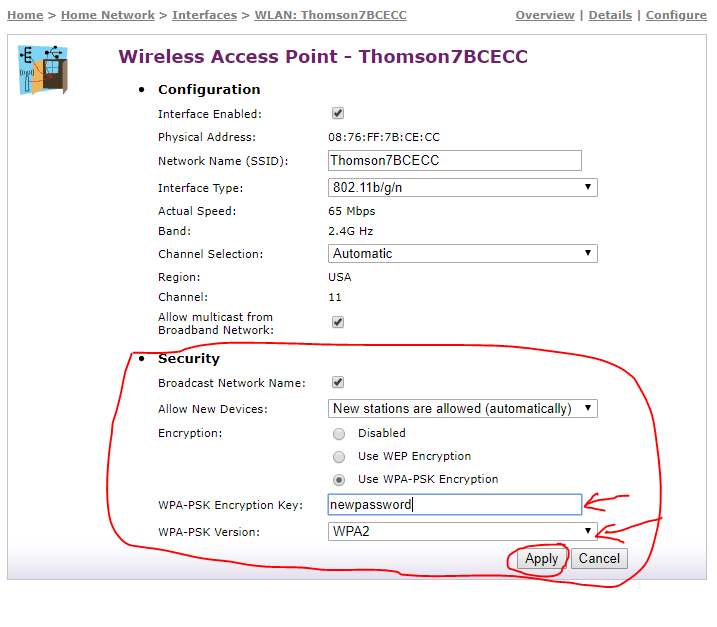
5. From the Security section of Wireless Access Point configuration page, make the following changes:
- Set WPA-PSK Version to WPA2. This is the most secure setting for this modem may cause some older devices to no longer connect to your wifi network. If so, you can change it to WPA+WPA2
- Enter your new password in the WPA-PSK Encryption Key field and click Apply
6. After this change is applied, you will have to enter the new password on your client devices (computers and mobile devices) to reconnect over wifi.
¶ Using a ST516 with router: Deactivate your router’s idle timer
If you have a ST516 DSL modem connected to a router, it is best if the router’s idle timeout feature (if it has one) be disabled. Otherwise your DSL connection may go up and down every five minutes.
To see if you have the problem, log into the NCF StartPage and then click on the link Your recent DSL use. Scroll down to ‘Connection details’. If there are many session of short duration (eg., 5 minutes), you probably have a router with an idle timer running.
To fix this there is a router setting usually called something like “Maximum Idle Time” which will cause the internet DSL connection to be dropped after a period of no internet use. As long as you are using the internet, this setting does nothing, but when you stop using the internet, after the period specified by this setting, your router will tell your DSL modem to disconnect and reconnect. This usually acceptable, but pointless, although it often causes grief for members. It is best to disable it. Change the number to something larger than 3 days (eg., set it to 5000), or, on some routers, you can disable it altogether (try entering 0).
So if you are getting regular DSL cuts, check that your router idle time is set to a large number of minutes (eg., 5000). Some routers may have an “always connected” setting which will override all of the foregoing and leave your DSL connection in permanent connect mode, which is the ideal solution!
You can check that it worked by waiting a day for the DSL use page to be updated (it is updated nightly).
¶ See also
- Changing WiFi Channels on SpeedTouch ST585
- Modem Configuration - for a complete list of instructions for all NCF modems
- Thomson Modem Manuals - For modem manuals including firmware and emulators for Thomson and SpeedTouch gateways
- SpeedTouch 516 and 585 on ADSL2+