¶ SmartRG
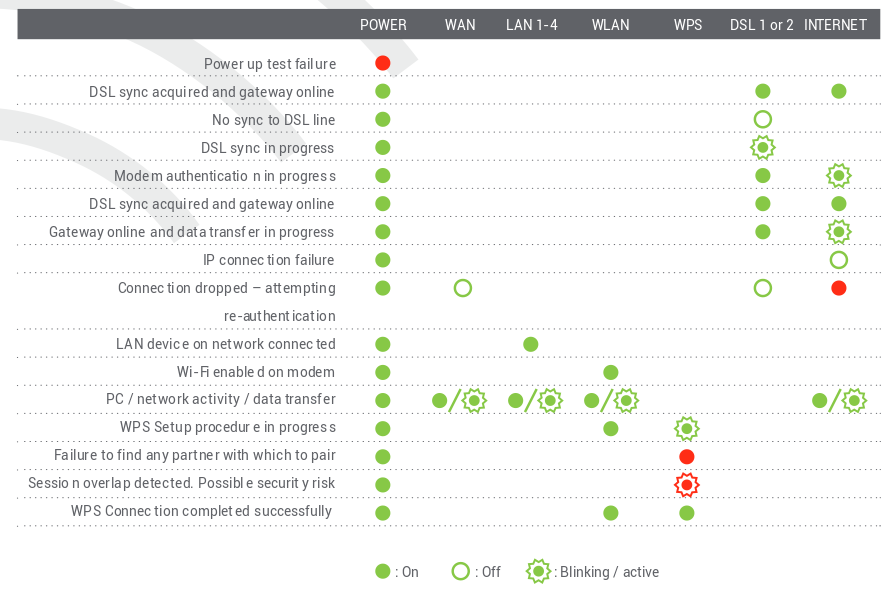
The operational status of your SmartRG DSL modem is indicated by lights (LEDs). SmartRG modems have lights to indicate power, Wide Area Network (WAN), Local Area Network (LAN), wireless (WLAN), Wi-Fi Protected Set-up (WPS), DSL and Internet connection.
Information is communicated by whether the lights are green, red, off or flashing. Activity on a line is often indicated by flickering lights, when the line is active.
Here’s a summary of how to read the lights on SmartRG DSL modems:
¶ TP-Link
The operational status of your TP-Link DSL modem is indicated by lights (LEDs). TP-Link modems have lights to indicate power, the status and activity of the DSL line, and the status and activity of connections to your computer, whether by ethernet or by wireless.
TP-Link modems have lights on the front (8901G and 8950) or the top (8816, 8951, 8961 and 9970).
Information is communicated by whether the lights are on, off or flashing. Activity on a line is often indicated by flickering lights, when the line is active.
This article includes a summary of how to read the lights on TP-Link modems.
¶ TD-W8951ND, TD-W8961ND & TD-W9970N
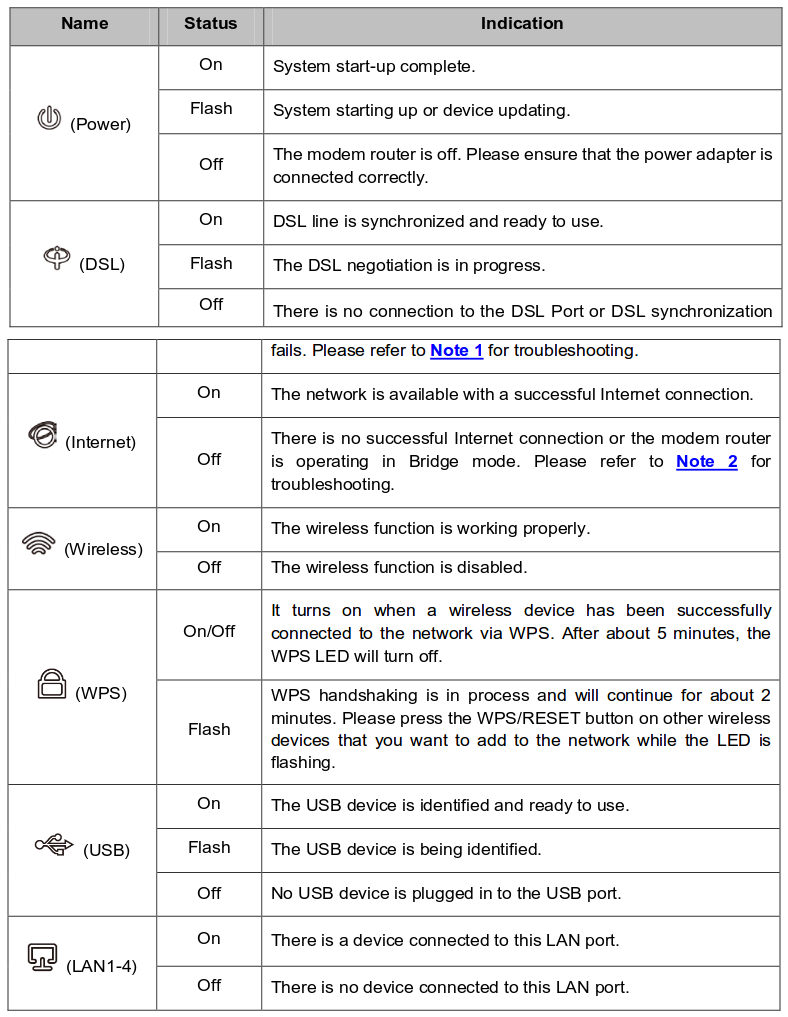
- If the DSL LED is off, check your internet connection first.
- If the internet LED is off, check your DSL LED first. If your DSL LED is also off, please refer to Note 1. If your DSL LED is GREEN ON, check your internet configuration.
¶ TD-W8901G & TD-W8950ND

Power
Should be solid green. If it is unlit, there is a power problem or the unit is broken. Check that the modem is plugged in and switched on.
ADSL (Asymmetric Digital Subscriber Line)
Flashes green when the modem is synchronizing, will be solid green once synchronization has occurred.
Internet
Will illuminate green when authentication has been successful, and will flash to show data traffic.
WLAN light (Wireless Local Area Network)
Will be solid green or flashing green if a computer is connected to the wireless.
Numbers
These lights correspond to Ethernet ports connected. These will show a solid green light when a computer is connected to the corresponding port by Ethernet cable and will flash to show data traffic.
¶ TD-8816 & TD-8616

Power
Should be solid green. If it is unlit, there is a power problem or the unit is broken. Check that the modem is plugged in and switched on.
LAN (Local Area Network)
Should be solid green if a computer is connected to the ethernet port.
ADSL (Asymmetric Digital Subscriber Line)
Flashes green when the modem is synchronizing, will be solid green once synchronization has occurred.
Internet
Will illuminate green when authentication has been successful, and will flash to show data traffic.
¶ Sagemcom
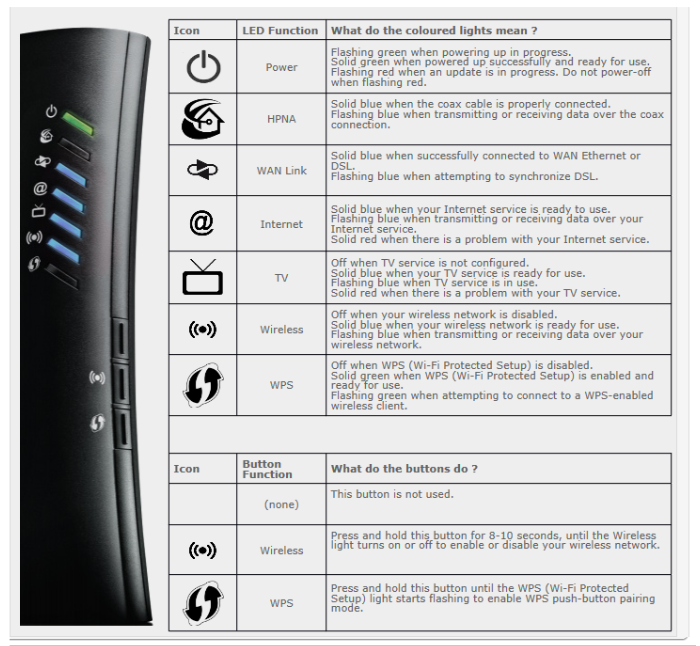
The operational status of your Sagemcom DSL modem is indicated by lights (LEDs). Sagemcom modems have lights to indicate power, the status and activity of the DSL line, and the status and activity of wireless connections to your computer.
Information is communicated by whether the lights are on, off or flashing. Activity on a line is often indicated by flickering lights, when the line is active.
Here’s a summary of how to read the lights on Sagemcom modems:
¶ SpeedTouch
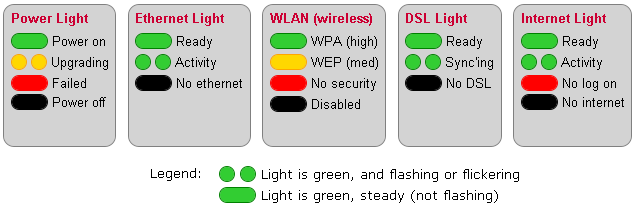
The operational status of your SpeedTouch DSL modem is usually indicated by lights (LEDs). Different modem models vary in detail, of course, but typically they have lights to indicate power, the status and activity of the DSL line, and the status and activity of connections to your computer, whether by ethernet or by wireless.
The Thomson SpeedTouch 585 modems have five lights on the front (Power, Ethernet, WLAN, DSL and Internet) and four lights on the back, which show the status of each of the four ethernet ports.
Information is communicated by the colour of the lights and whether they are steady or flashing. Activity on a line is often indicated by flickering lights, when the line is active.
Here’s a summary of how to read the lights of a Thomson 585 v7 (other models are similar):
LED Light |
LED Status |
Troubleshooting Options |
|---|---|---|
Power light |
steady green |
If it is unlit, there is a power problem or the unit is broken. Check that the modem is plugged in and switched on. |
Power light |
red or amber |
The unit has discovered a problem. Try unplugging the unit from the power and disconnecting it from all cables, waiting more than 5 seconds (for capacitors to discharge) and then connecting it to power again. If the power light goes green, then connect cables. Otherwise, if the power light remains red or amber then the unit is most likely broken and will have to be replaced. |
Ethernet light |
green (steady or flickering) |
As long as there is at least one ethernet cable connected to a working computer. Ethernet traffic is indicated by flickering of the light. To check individual cables, most SpeedTouch modems have green LEDs at the back of the modem where the ethernet cables plug in which will be green (and flicker with activity) if ethernet is active on that particular cable. |
WLAN light |
flashes |
indicate wireless activity. The colour of the light indicates the security mode of the wireless service |
WLAN light |
green |
is highest security, using WPA encryption |
WLAN light |
amber |
is medium security, using WEP; |
WLAN light |
red |
indicates no security (anyone can use your wireless without providing a password) |
WLAN light |
unlit |
wireless is disabled (turned off) |
Broadband (DSL) light |
steady green |
indicating that the unit has detected a DSL signal and is able to synchronize with it. It indicates that the unit is in sync. |
Broadband (DSL) light |
flash green |
During the process of obtaining DSL synchronization, the Broadband light flashes . If it flashes indefinitely, there is a problem. |
Internet light |
steady green |
the Central Office has accepted your modem's login and password and is ready to provide internet service via DSL to your modem. |
Internet light |
red or unlit |
there is a problem |
¶ Troubleshooting Notes
- For information about configuring wireless and enabling/disabling it, please consult the modem manual for your unit.
- If you previously had a working connection and nothing has changed at your location (eg., no new devices attached to your phone line), try power cycling your modem (see above). If that doesn’t work, likely it’s an external problem and it is best to wait 10 minutes and see if it clears up. Sometimes the modem needs to be power-cycled for it to notice a line that has returned to service and to connect to it.
- If you are installing the modem for the first time, and the DSL Light keeps flashing here are possible solutions:
- Make sure there is no filter on the line that connects your modem to the phone line. The modem must be plugged directly into the phone line.
- Make sure all other devices, including telephones, answering machines, fax machines and security alarms at your location are connected through DSL line filters.
- If problems persist, try temporarily disconnecting all other devices from your phone line as a phone or even a filter that is failing can cause interference.
- If you can find a working internet connection (by dial-up, cellphone, at a friend’s home or at an office or library), you can check online with NCF to see if anyone else is experiencing problems. If not, it is best to send a problem report to the NCF office for further action.
- If your unit was able to log in earlier and you have not made any changes, a red internet light likely means that there is a temporary network problem (at the Central Office or NCF) making it temporarily impossible to check your login and password. In this case it is best to just wait for the problem to be fixed. You may need to power-cycle or restart your modem for it to notice that service has been restored. If you can get online elsewhere (by dial-up, at a friend’s home or at an office or library), you can check the NCF web site to see if others are experiencing problems. If not, report the problem, although network-wide problems are almost always noticed quickly.
- If you are installing your modem for the first time and the DSL light is green but the Internet light is red, likely your unit hasn’t been configured with a correct login and password. Check the configuration instructions for information about configuring.
- If you are having problems and find any of the back-side ethernet LEDs flashing at a steady rate (on-off-on-off…), it indicates a hardware problem that requires service, but try power-cycling just in case that resolves it.
¶ Beyond the lights
Lights can indicate only a small amount of information about your modem. To learn more about what your modem is doing, you can view your DSL usage log (this link is also available from the NCF StartPage, under ‘Internet Access’). Often the pattern of connect/disconnects will reveal more information.
It is also possible to log into your modem (there is a computer with a UNIX operating system in there) using a web browser, and then view its event log. For information about the modem’s event log, consult the modem manual for your modem model.
¶ Troubleshooting reboots
Some older ST585 units have had problems as they seem to reboot themselves over and over. One member solved this by telnetting into the unit via command line and deactivating Universal Plug and Play (UPnP):
$ telnet 192.168.1.254
$ system config upnp = disabled
$ saveall
¶ Accessing Telnet
¶ Linux and Mac
On Linux operating systems you can access telnet by opening a terminal and typing in “telnet 192.168.1.254” at the prompt.
¶ Windows
On Windows XP and Vista operating systems telnet can be accessed by opening “run” and the “cmd” command and entering telnet.
In Windows 7 and 8 you can bring up the command line by entering “cmd” in the search bar.
In any version of Windows you can also run telnet by installing and using the PuTTY free software application.
¶ Internet
The internet light is steady green when the NCF authentication server has accepted your modem’s login and password and is ready to provide internet service via DSL to your modem. If the light remains unlit, there is a problem.
If your unit was able to log in earlier and you have not made any changes, an unlit light likely means that there is a temporary network problem (at the Central Office or NCF) making it temporarily impossible to check your login and password. In this case it is best to just wait for the problem to be fixed. You may need to power-cycle or restart your modem for it to notice that service has been restored. If you can get online elsewhere (by dial-up, at a friend’s home or at an office or library), you can check the NCF web site to see if others are experiencing problems. If not, report the problem, although network-wide problems are almost always noticed quickly.
If you are installing your modem for the first time and the DSL light is green but the Internet light is unlit, likely your unit has not been configured with a correct login and password. Check the configuration instructions for information about configuring:
- TP-Link TD-8816 Configuration
- TP-Link TD-W8901G Configuration
- TP-Link TD-W8950ND Configuration
- TP-Link TD-W8951ND Configuration
- TP-Link TD-W8961ND Configuration
- TP-Link TD-W9970 Configuration
¶ Beyond the lights
Lights can indicate only a small amount of information about your modem. To learn more about what your modem is doing, you can view your DSL usage log (this link is also available from the NCF StartPage, under ‘Internet Access’). Often the pattern of connect/disconnects will reveal more information.
It is also possible to log into your modem (there is a computer with a Linux operating system in there) using a web browser, and then view its event log. For information about the modem’s event log, consult the modem manual for your modem model.