Ovislink OV804WVA
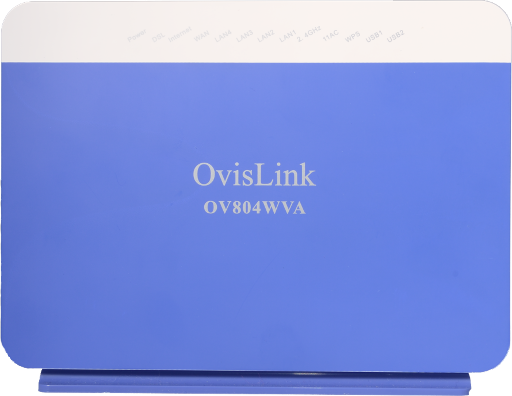
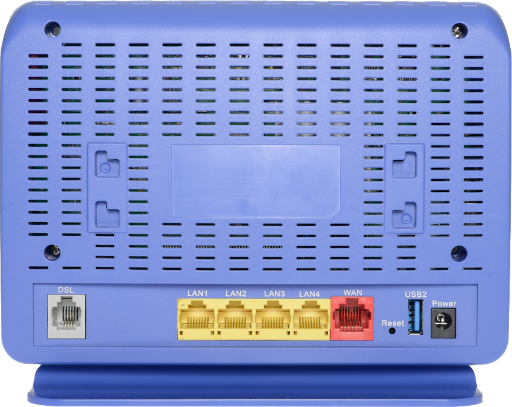
1. Using an Ethernet cable plug into one of the yellow LAN Ports at the back of the OvisLink modem or connect to your wireless network NCF_XXXX.
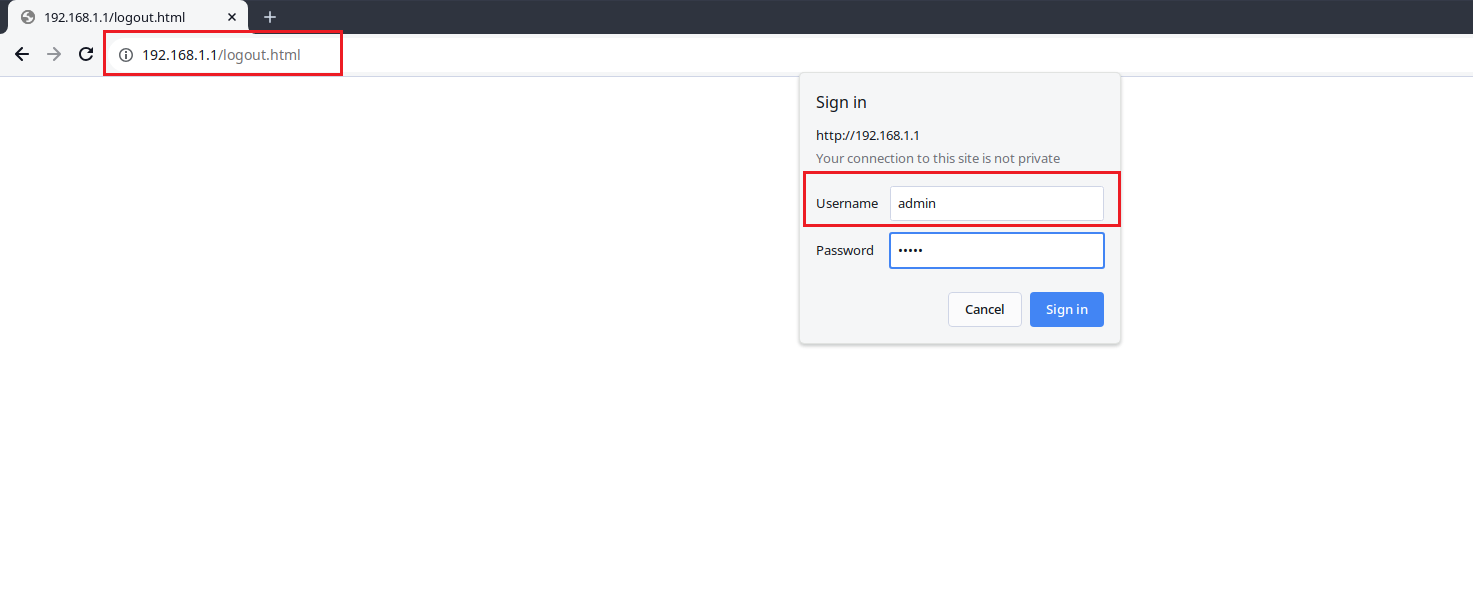
2. Open an Internet browser on your computer and connect to the modem by typing 192.168.1.1 in the address bar.
3. Log in to the Administrative Account:
- Username: admin
- Password: Your modem password (Default is admin)
 Changing your WiFi name:
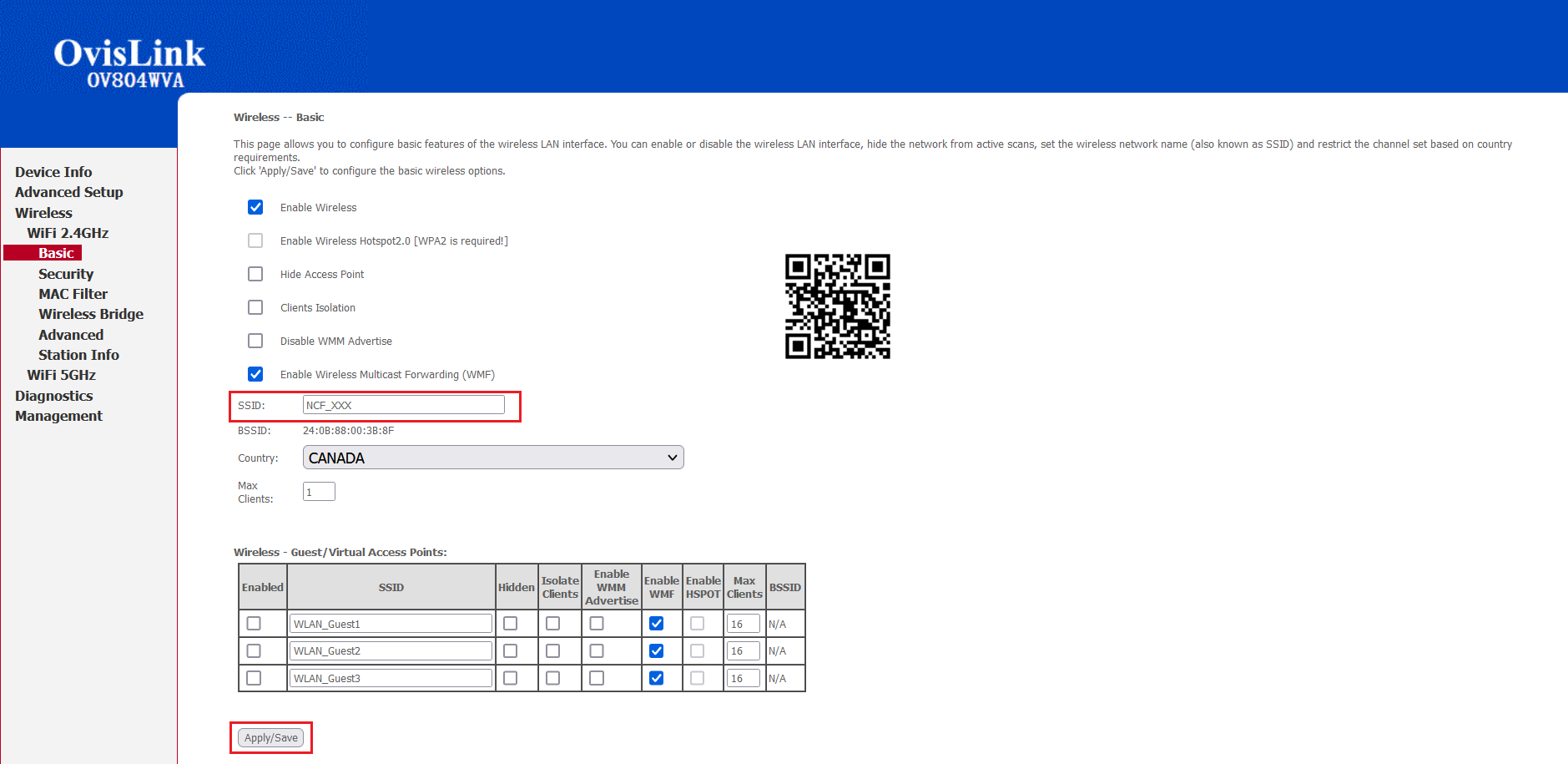
4. From the Device Info page, navigate to Wireless menu option on the left.
5. Click on either the 5 GHz Band or 2.4 GHz Band submenus
6. On the Wireless-- Basic settings page for either the 2.5 or 5 GHz band, change the SSID to the WiFi name to the name of your choice
7. Click Apply/Save at the bottom of the page.
- If you are connected to your modem over WiFi, you may be disconnected at this time. You will need to connect to the new WiFi name with the same WiFi password as before.
 Changing your WiFi password:
8. From the Device Info page, navigate to Wireless menu option on the left.
9. Click on either the 5 GHz Band or 2.4 GHz Band submenus
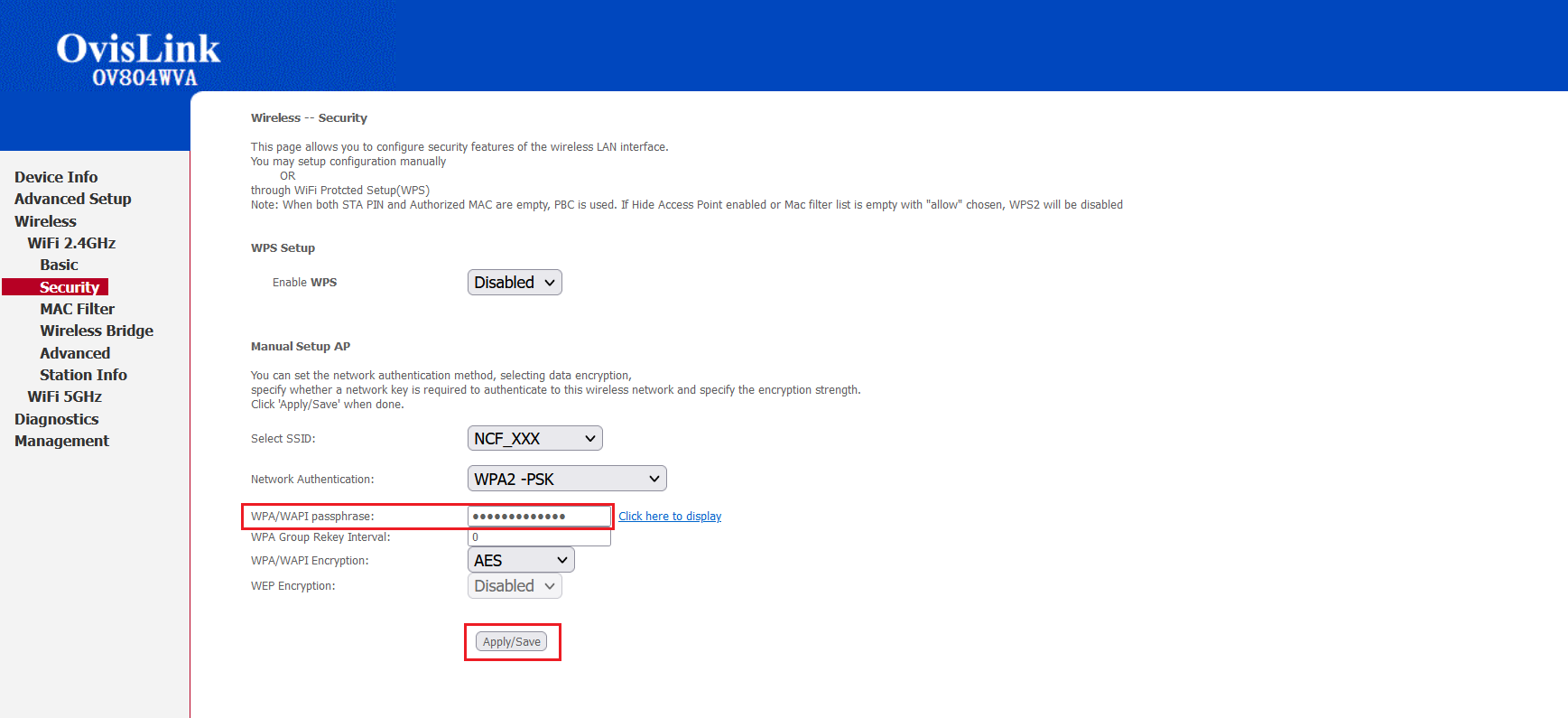
10. Click on Security
11. On the Wireless-- Security settings page for either the 2.5 or 5 GHz band, change the WPA passphrase to the password of your choice
- You can check that the password is correct by clicking the Click here to display button which generates a pop up.
12. Click Apply/Save at the bottom of the page.
- If you are connected to your modem over WiFi, you may be disconnected at this time. You will need to re-connect to your WiFi with the new password.
 Notes:
You will need to change the 2.4 GHz band and 5 GHz bands independently. If the bands have the same name and password, your device will select the best band at that time. If you are having WiFi interference issues, it may be better to have different names for the 2.4 and 5 GHz bands to test them independently.
¶ See Also
- Modem Configuration - for a complete list of instructions for all NCF modems
- Ovislink OV804WVA Changing WiFi Channels
- Ovislink OV804WVA DNS settings