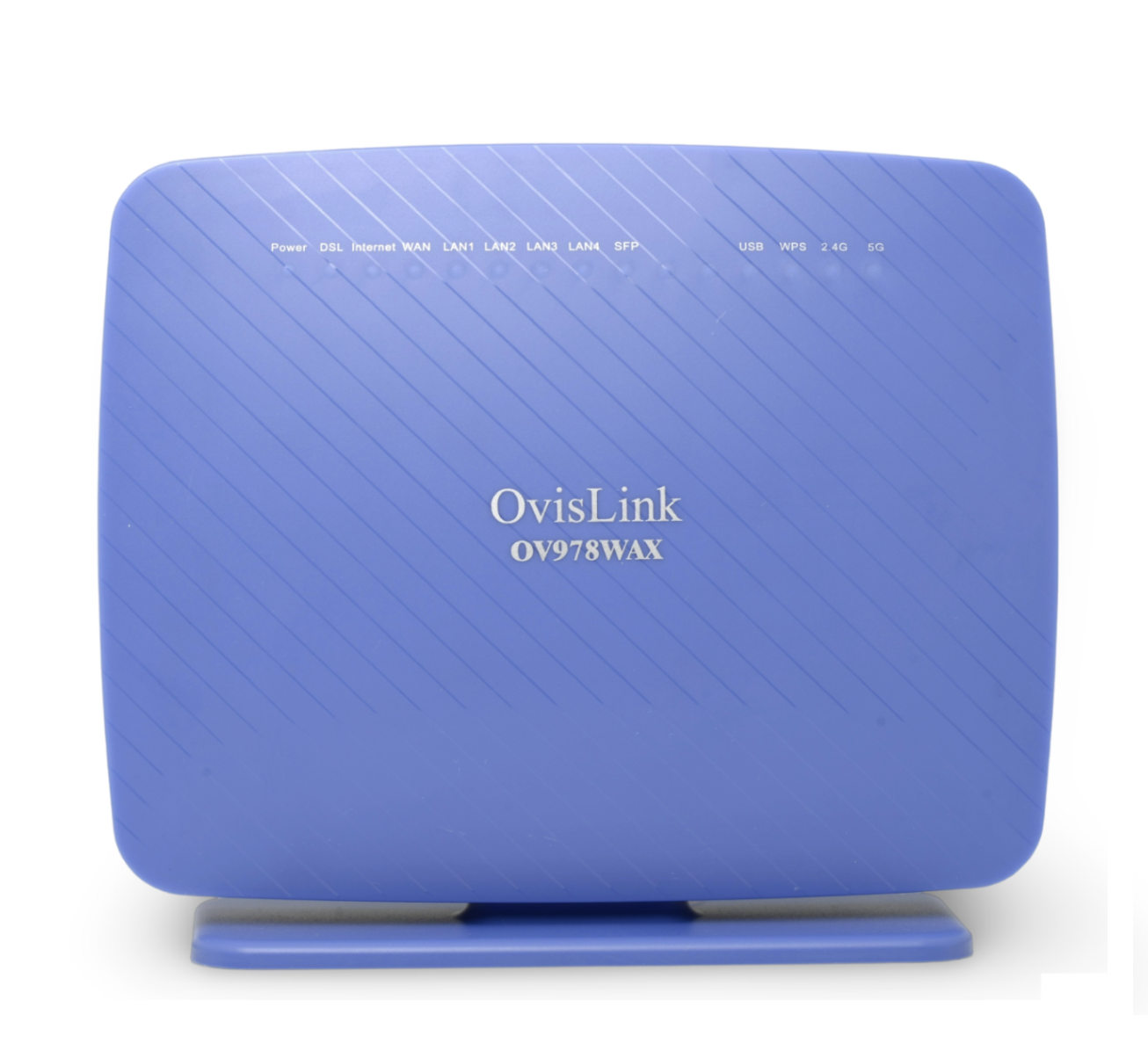
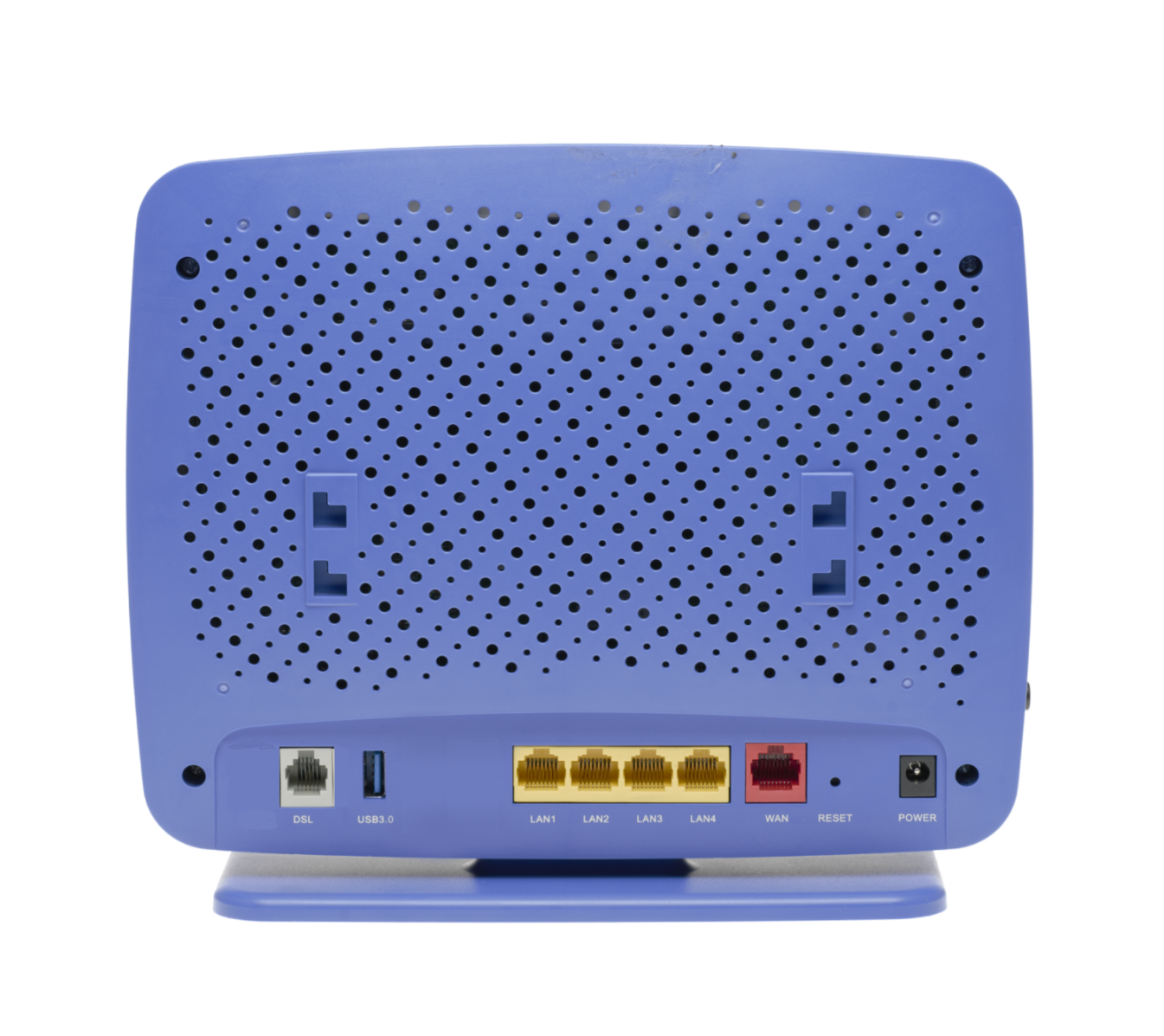
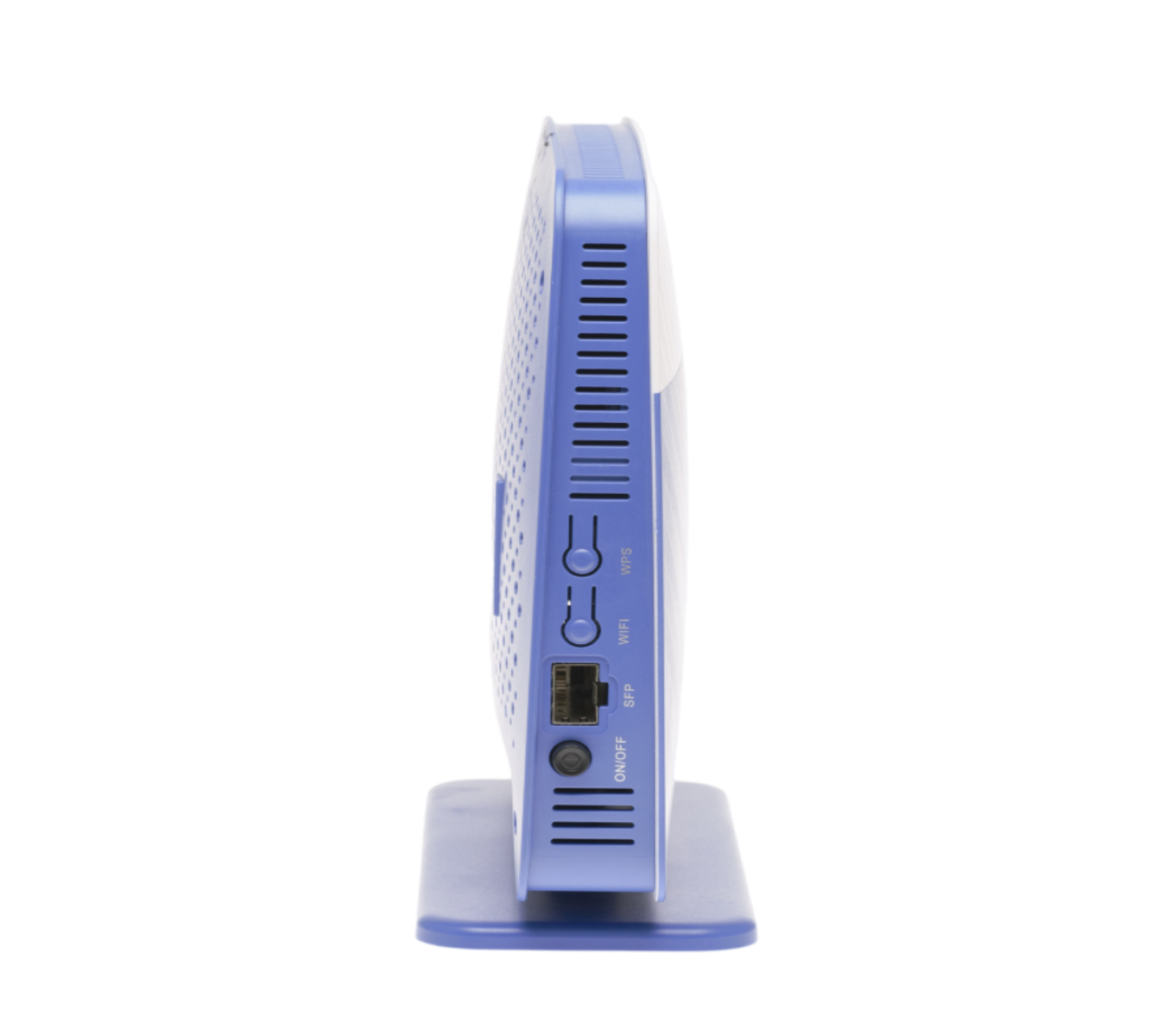
NCF Support is available to make configuring your Ovislink modem easier and to help you avoid potential mistakes. Here are simpler configuration options for your Ovislink modem:
1. You can request a custom configuration file for your NCF DSL connection from support@ncf.ca.
- You may need an alternate means of accessing the internet to download the configuration file.
2. Call 613-721-1773 x0 to book a Modem Appointment.
If you prefer using your own external router to the one built into your Ovislink unit, we recommend routed operation with a separate Wi-Fi Router. However, if you have networking expertise and are confident using the modem in bridge mode, then take note of the following before configuring your Ovislink for Bridged operation:
1. Once you complete configuring your Ovislink modem for Bridged operation and disconnect from the modem, the Modem’s Web Interface will become inaccessible with Auto DHCP settings on your computer. We recommend:
- Backup Settings: It is particularly important to backup the Running Settings on your modem before and after you configure it.
- Manual IP: Setting a static IPv4 address on your computer, with the gateway IP set to http://192.168.1.1 to regain access to the modem.
- Reset the modem: If you need to reset the modem, insert a paper-clip in the Reset hole on the back. Hold for 10 seconds to reset.
2. If you set up the modem for Bridge operation, then your router will need to be configured in PPPoE mode with your DSL username and password.
Steps |
Menu Navigation |
Parameters |
|
|---|---|---|---|
1 |
Log into Modem |
Password: admin or your DSL password |
|
2 |
WAN Cleanup |
Advanced Setup → WAN Service |
Remove ppp0.1 from WAN Service Table |
3 |
Enable ADSL |
Advanced Setup → Layer2 Interface → ATM Interface |
Add ATM: vpi:0 vci:35 DSL Latency: FAST and INTERLEAVED. Then click Apply/Save |
4 |
Enable VDSL |
Advanced Setup → Layer2 Interface → PTM Interface |
Remove ptm0 with Path0 Add PTM: DSL Latency: FAST and INTERLEAVED. Then click Apply/Save |
5 |
Configure ADSL |
Advanced Setup → WAN Service |
Add atm0/(4_0_35)
|
6 |
Configure VDSL |
Advanced Setup → WAN Service |
Add ptm0/(4_1_1)
|
7 |
WiFi |
Wireless 2.4 and 5GHz |
Status: Disabled. Then click Apply/Save |
8 |
Admin Password |
Management → Access Controls → Passwords |
|
9 |
Remote Access |
Management → TR-069 Client |
|
10 |
Internet Time |
Management → Internet Time |
Time settings:
|
11 |
Backup Settings |
Management → Settings → Backup |
Settings -Backup
|
Steps to Configure OvisLink for Bridge Operation
¶ See Also
- Modem Configuration - Instructions for all NCF modems