¶ with WiFi
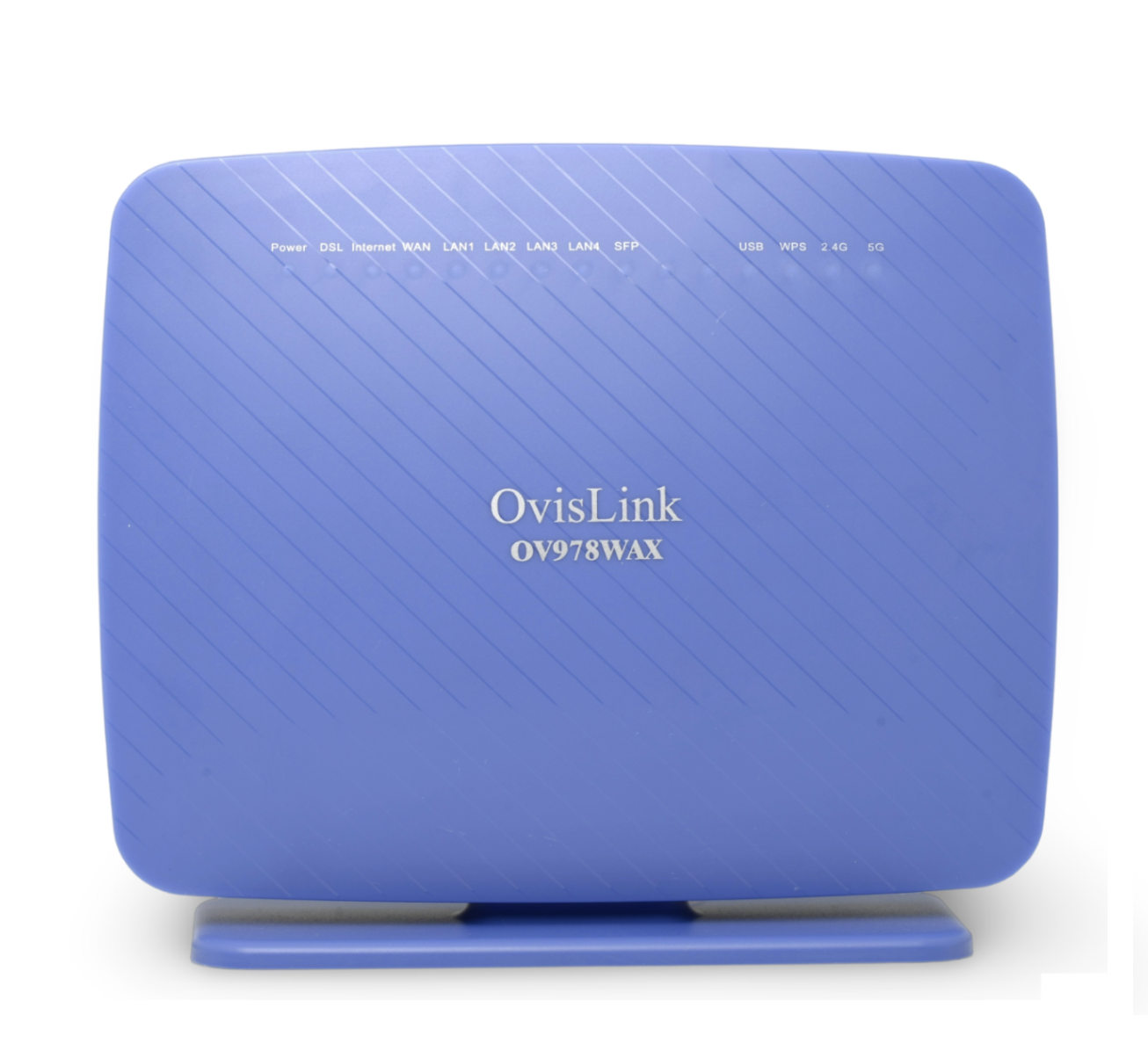
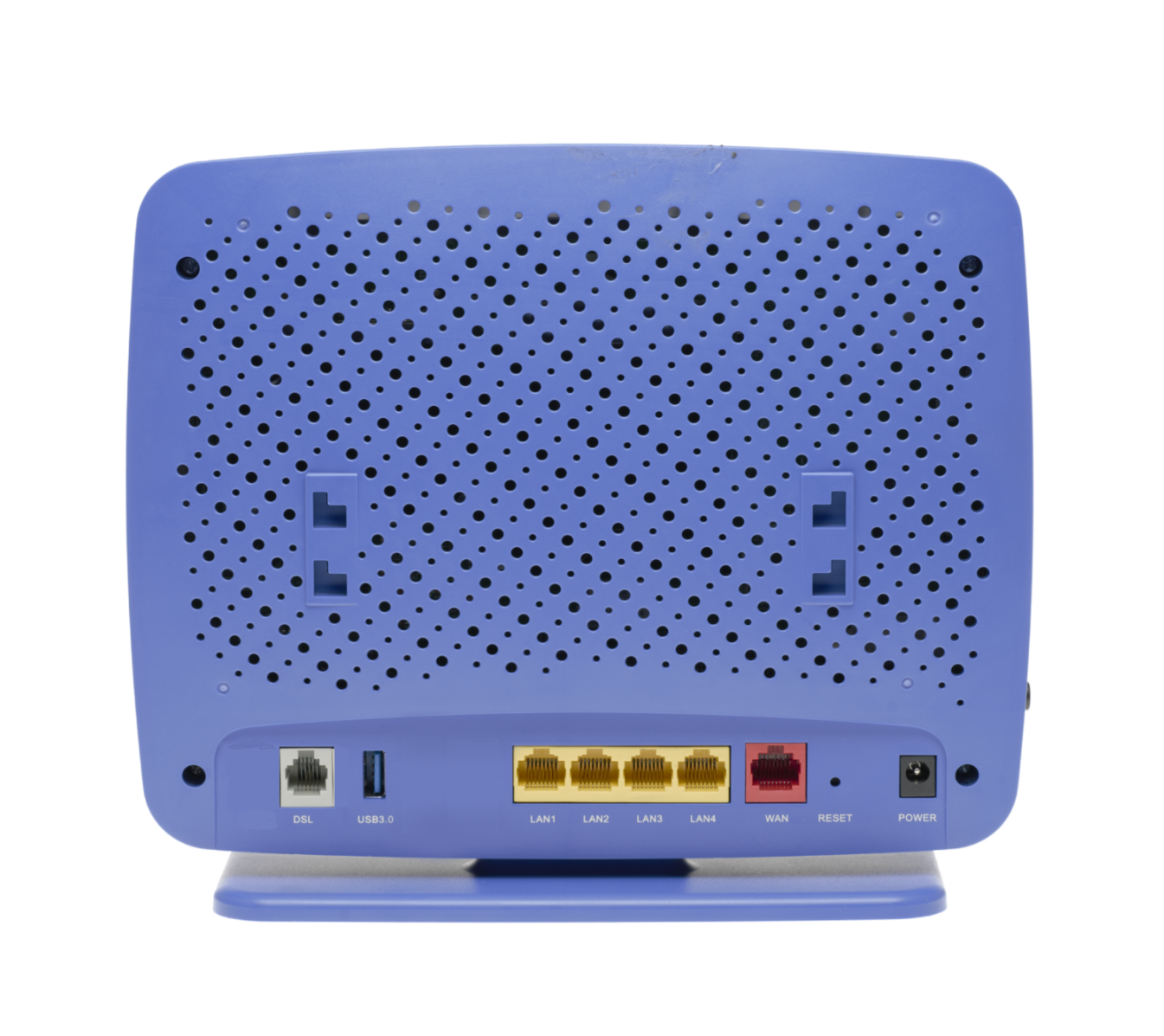
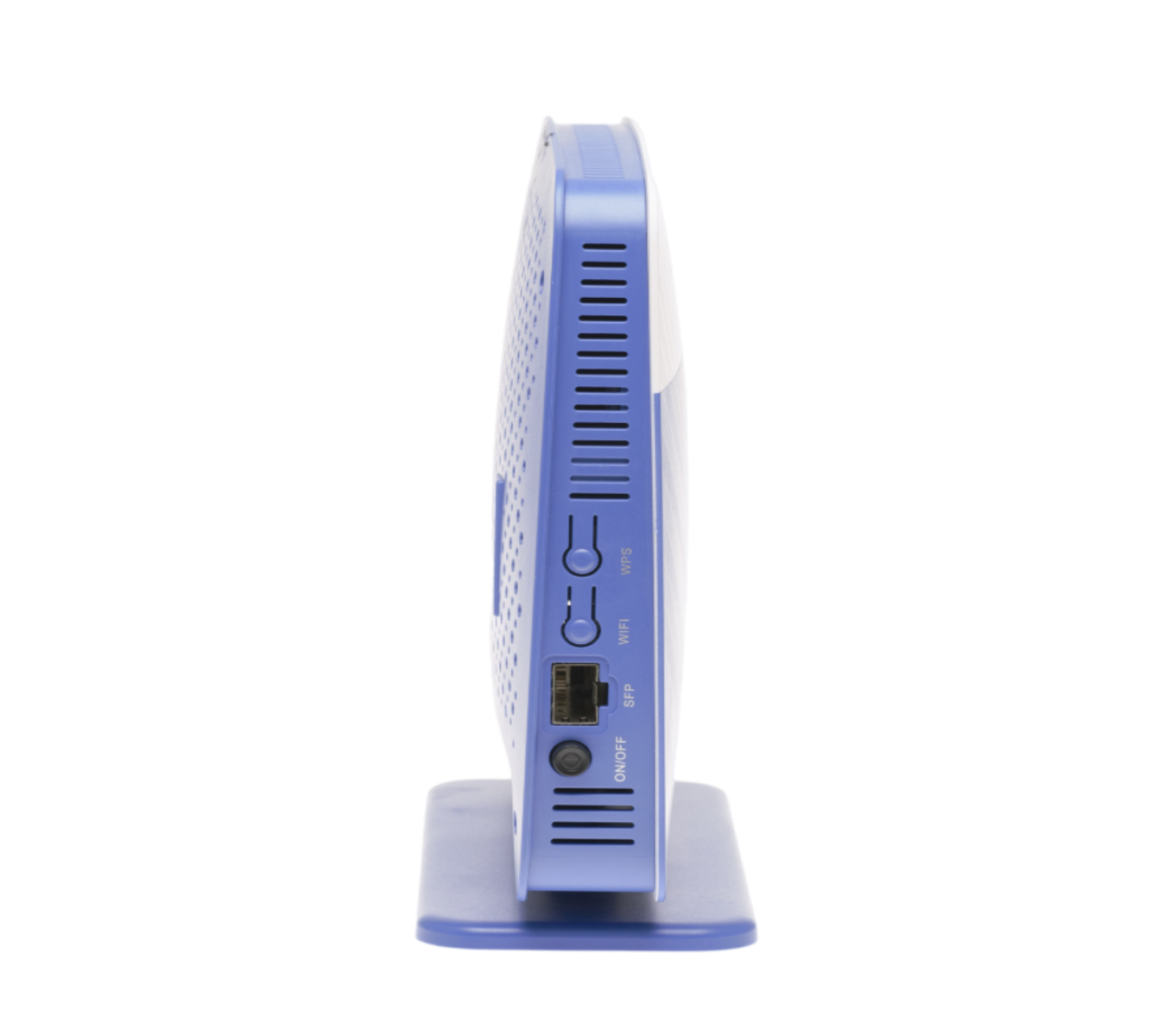
NCF Support is available to make configuring your OvisLink modem easier and to help you avoid potential mistakes. Here are simpler configuration options for your OvisLink modem. All settings in your modem not mentioned in these instructions can be ignored.
- You can request a custom configuration file for your NCF DSL connection from support@ncf.ca.
- Call 613-721-1773 x0 to book a Modem Appointment.
Steps |
Menu Navigation |
Parameters |
|
|---|---|---|---|
1 |
Log into Modem |
http://192.168.1.1 |
Password: admin or your DSL password |
2 |
WAN Cleanup |
Advanced Setup → WAN Service |
Remove everything from the WAN Service Table by clicking the checkbox on the right for each entry, then click the Remove button |
3 |
Enable ADSL |
Advanced Setup → Layer2 Interface → ATM Interface |
|
4 |
Enable VDSL |
Advanced Setup → Layer2 Interface → PTM Interface |
|
5 |
Configure ADSL |
Advanced Setup → WAN Service |
|
6 |
Configure VDSL |
Advanced Setup → WAN Service |
|
7 |
UPnP |
Advanced Setup → UPnP |
Disable uPnP |
8 |
WiFi 5GHz Name |
Wireless → 5 GHz Band |
SSID (WiFi Name) to format NCF_XXXX, where XXXX is the last 4 digits of your modem's serial number |
9 |
WiFi 5 GHz Security |
Wireless → 5 GHz Band |
|
10 |
WiFi 2.4 GHz Name |
Wireless → 2.4 GHz Band |
SSID (WiFi Name) to format NCF_XXXX, where XXXX is the last 4 digits of your modem's serial number |
11 |
WiFi 2.4 GHz Security |
Wireless → 2.4 GHz Band |
|
12 |
Admin Password |
Management → Access Controls → Passwords |
|
13 |
Remote Access |
Management → TR-069 Client |
|
14 |
Internet Time |
Management → Internet Time |
Time settings:
|
15 |
Backup Settings |
Management → Settings → Backup |
Settings -Backup
|
Steps to Configure OvisLink for Routed Operation
¶ with separate WiFi Router
NCF Support is available to make configuring your OvisLink modem easier and to help you avoid potential mistakes. Here are simpler configuration options for your OvisLink modem:
- You can request a custom configuration file for your NCF DSL connection from support@ncf.ca. You may need an alternate means of accessing the internet to download the configuration file.
- Call 613-721-1773 x0 to book a Modem Appointment.
¶ Configure your modem for Routed Operation
If you have a router, we recommend the following configuration steps:
- Follow the configuration steps outline for Routed Operation with WiFi and make the following changes:
- Under Wireless, Uncheck the Enable Wireless Option
- Click Apply/Save
¶ Router configuration
2. On your router, set the Connection Mode or Type to Automatic IP, Automatic DHCP or Dynamic IP mode
¶ See Also
- Modem configuration - Instructions for all NCF modems