SmartRG SR506n
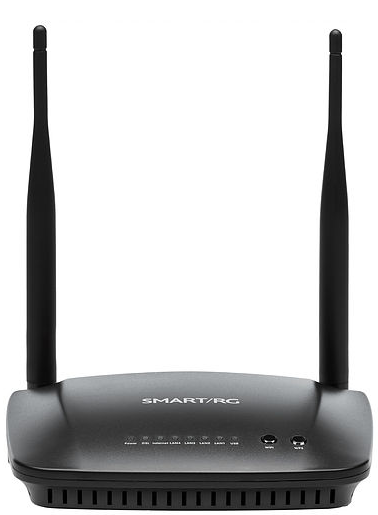
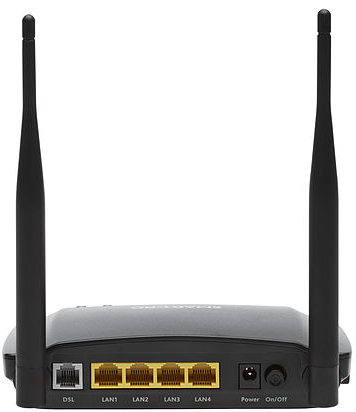
Sold from Aug 2018 to July 2021
- Home
- Configuration from File
- Routed Configuration
- Bridge Configuration
- Firmware Check and Update
- Changing WiFi Channels on SmartRG modems
- Changing WiFi Name or Password on SmartRG modems
- Changing DNS Settings on SmartRG Modems
- Port Forwarding
- About your SmartRG SR506n
- SmartRG - Manual
- SmartRG - Data Sheet
- Highspeed Tips - SR505n Emulator (differs slightly)
¶ with WiFi
NCF Support is available to make configuring your SmartRG modem easier and to help you avoid potential mistakes. Here are simpler configuration options for your SmartRG modem:
- You can request a custom configuration file for your NCF DSL connection from support@ncf.ca.
- You may need an alternate means of accessing the internet to download the configuration file.
- Call 613-721-1773 x0 to book a Modem Appointment.
Steps |
Menu Navigation |
Parameters |
|
|---|---|---|---|
1 |
Log into Modem |
http://192.168.1.1 → Manage Gateway (Advanced) |
User Name: admin Password: admin |
2 |
WAN Cleanup |
Advanced Setup → WAN Service |
Remove everything from the WAN Service Table |
3 |
Enable ADSL |
Advanced Setup → Layer2 Interface → ATM Interface |
Add ATM: vpi:0 vci:35 DSL Latency: FAST and INTERLEAVED |
4 |
Enable VDSL |
Advanced Setup → Layer2 Interface → PTM Interface |
Remove ptm0 with Path0 Add PTM: DSL Latency: FAST and INTERLEAVED |
5 |
Configure ADSL |
Advanced Setup → WAN Service |
Add atm0/(4_0_35) PPPoE (pppoe_4_0_35)
|
6 |
Configure VDSL |
Advanced Setup → WAN Service |
Add ptm0/(4_1_1) PPPoE(pppoe_4_1_1.35)
|
7 |
UPnP |
Advanced Setup → UPnP |
Disable uPnP |
8 |
WiFi Name |
Wireless |
SSID (WiFi Name) to format NCF_0000 |
9 |
WiFi Security |
Wireless → Security |
|
10 |
Admin Password |
Management → Access Controls → Passwords |
|
11 |
Disable Support |
Management → Access Controls → Accounts |
Delete/Modify Account
|
12 |
Remote Access |
Management → Management Server |
|
13 |
System Log |
Management → System Log |
Configure System Log
|
14 |
Internet Time |
Management → Internet Time |
|
15 |
Backup Settings |
Management → Settings → Backup |
|
Steps to Configure SR506N for Routed Operation
¶ with separate WiFi Router
NCF Support is available to make configuring your SmartRG modem easier and to help you avoid potential mistakes. Here are simpler configuration options for your SmartRG modem:
- You can request a custom configuration file for your NCF DSL connection from support@ncf.ca.
- You may need an alternate means of accessing the internet to download the configuration file.
- Call 613-721-1773 x0 to book a Modem Appointment.
¶ Configure your modem for Routed Operation
If you have a router, we recommend the following configuration steps:
1. Follow the configuration steps outline for Routed Operation with WiFi and make the following changes:
- Under Wireless, Uncheck the Enable Wireless Option,
- Click Apply/Save
¶ Router Configuration
2. On your router, set the Connection Mode or Type to Automatic IP, Automatic DHCP or Dynamic IP mode.
¶ See Also
- Modem Configuration - Instructions for all NCF modems
- About SmartRG modem lights
- SmartRG SR505N Changing WiFi Channels
- Dynamic DNS
- Port forwarding with the SmartRG SR505N