TP Link TD-W9970
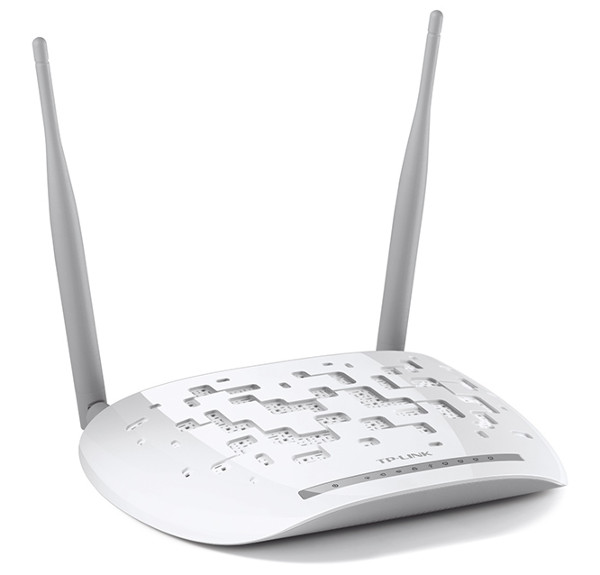
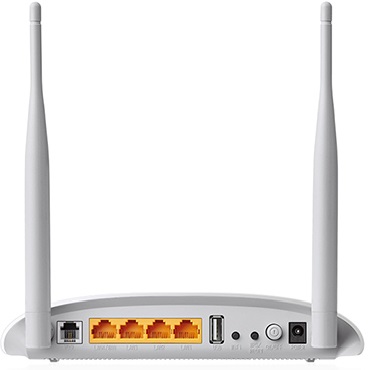
Sold from Jan 2016 to Oct 2017
- TP-Link TD-W9970 Configuration
- Changing WiFi Channels on TP-Link TD-W9970
- About your TP-Link TD-W9970
- TP-Link - TD-W9970 home page
- TP-Link - TD-W9970 User Guide
- TP-Link - TD-W9970 Quick Installation Guide
- TP-Link - TD-W9970 Datasheet
- TP-Link - TD-W9970 Emulator
- TP-Link - TD-W9970 Firmware
- TP-Link - TD-W9970 Modem Lights
- TP-Link - TD-W9970 FAQ
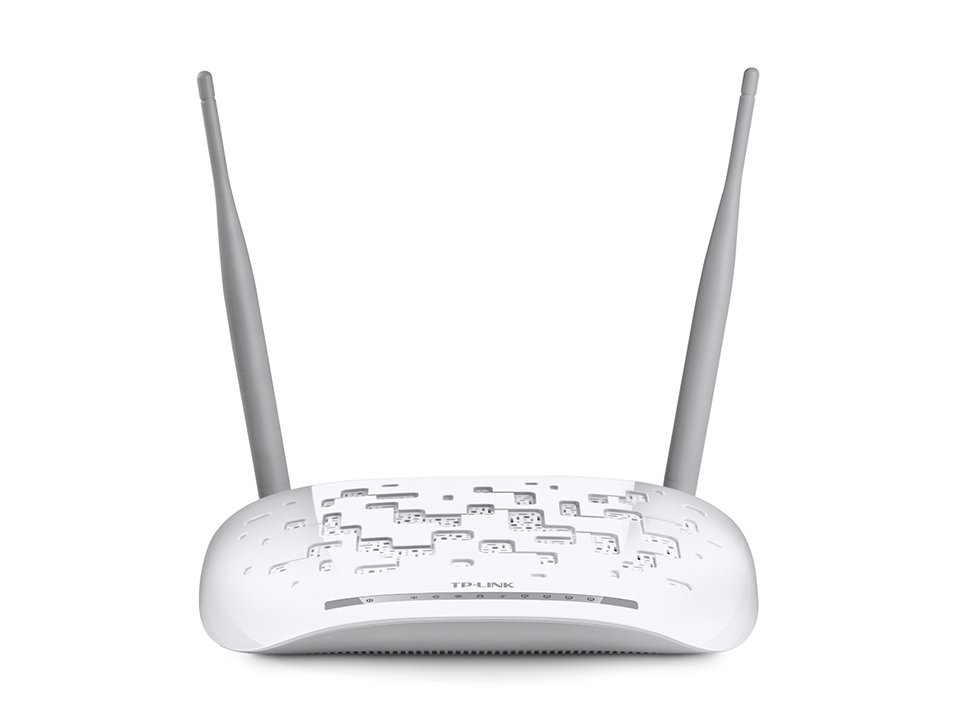
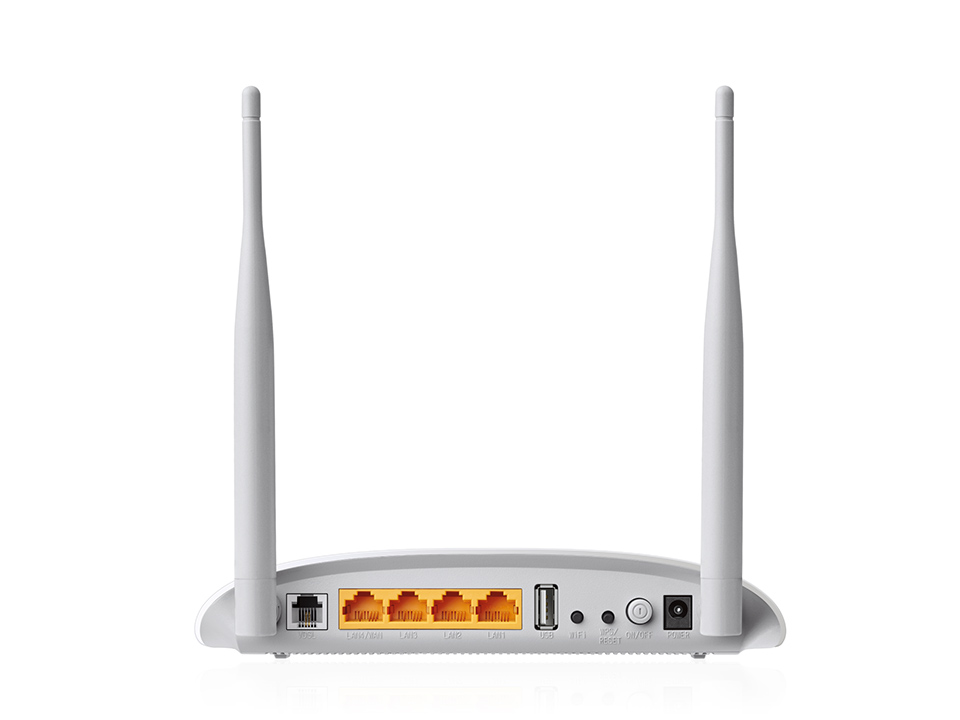 The TP-Link TD-W9970 is for use on any service on networks using Bell’s DSL infrastructure. To learn more about configuring your particular modem, consult the manual.
¶ Routed
The TP-Link TD-W9970 modem router supports both ADSL and VDSL, and switches automatically to match the line it is connected to.
¶ VDSL
Routed | VDSL | ADSL | DNS Fix | UPnP | Time | Manage Control | CWMP | Firewall ♦ Bridge | VDSL | ADSL ♦ See Also
We will start with the mode used for VDSL connections.
If the modem is new, a user name of admin and password of admin will gain access to the modem configuration. If the modem is not new, it is recommended to reset the modem to the factory default settings by holding down the Reset/Wi-Fi button for 6 to 9 seconds before continuing to Quick Setup Step 1 below.
Quick Setup
1. Once you access the modem from your browser at http://192.168.1.1 and login (user name: admin and password: admin), click the Quick Setup link in the Menu on the left.
Then click Next on the Quick Setup-Start page.
721x721px|Getting started
Region and Time Zone
- Set Region to Canada
- Time Zone to (GMT-05:00) Eastern Time (US & Canada)
- Click Next
722x722px|Step2
Auto Detection
- Click on No, I want to configure The Internet Connection myself
- Click Next
724x724px|Step3
DSL
- ISP: Other
- L2 Interface Type: VDSL
- Enable VLAN ID: checked
- VLAN: 35
- Connection Type: PPPoE
- Click Next
721x721px|Step4
PPPoE
- User name: ab123@ncf.ca (where ab123 is your NCF ID)
- Password: •••••••• (where •••••••• is your NCF DSL Password)
- Confirm password: ••••••••
- Click Next
725x725px|Step5
3G/4G
- Click Next
729x729px|Step6
Wireless
IMPORTANT NOTE: The Quick Setup process will not set the Wireless Security to use WPA2 exclusively with AES-- this means more recent devices connecting to the device may warn of insufficient security when connecting over Wi-Fi. To avoid this, after completing the Quick Setup, access the Wireless settings for the device, and ensure only WPA2 is selected for the Security protocol, and AES for the encryption method. A selection of WPA/WPA2 and AES/TKIP is less secure and will cause newer device to issue warnings.
- Wireless: Enable
- Wireless Network Name (SSID): NCF_XXXX (where XXXX are the last 4 digits of the modem serial number)
- Channel: Auto
- Mode: 11n only
- Security: WPA2
- Password: DSL Password
- Click Next
705x705px|Step7
Confirm
- Verify all setting are as entered
- Click Next
711x711px|Step8
Complete
- Click Finish
Stay logged-in
- Click Network (left-hand menu, 4th link from top)
- Click WAN Settings
DSL WAN Interface
- Click on Action: Edit (entry with pppoe_ptm_35_1_d, right-hand side of table)
WAN Settings
- WAN Service Setup, enter…
- Enable IPv6: Selected
- Click Advance
- Enable SPI Firewall: selected
- Enable IGMP Proxy: un-select
- Click Save
Wireless Settings
- Click Wireless (in left-hand menu)
- Click Wireless Security
- Ensure WPA/WPA2 (Personal) is selected
- Authentication Type: WPA2-PSK
- Encryption: AES
- Click Save
¶ ADSL
Routed | VDSL | ADSL | DNS Fix | UPnP | Time | Manage Control | CWMP | Firewall ♦ Bridge | VDSL | ADSL ♦ See Also
Moving on now to add settings for ADSL.
Stay logged-in
- Click Network (left-hand menu, 4th link from top)
- Click WAN Settings
DSL WAN Interface
- Click on Action: Delete (1st entry, right-hand side of table)
- Then click Add button
1195x1195px|Adding ADSL2+ WAN Config 1/2
WAN Settings
- DSL Modulation Type: ADSL
- ATM Configuration: VPI/VCI = 0/35
- WAN Service Setup
- Connection Type: PPPoE
- PPP Username: ab123@ncf.ca (where ab123 is your NCF ID)
- PPP Password: •••••••• (your NCF DSL Password)
- Confirm password: ••••••••
- Enable IPv4: selected
- Enable IPv6: select
- Click Advance
- Enable SPI Firewall: selected
- Enable IGMP Proxy: un-select
- Click Save
804x804px|Adding ADSL2+ WAN Config 2/2
¶ DNS Fix
Routed | VDSL | ADSL | DNS Fix | UPnP | Time | Manage Control | CWMP | Firewall ♦ Bridge | VDSL | ADSL ♦ See Also
There is a known issue where the internal DNS server sometimes stop responding after swapping between ADSL and VDSL connections. To avoid this issue, we recommend hard-coding a public DNS server instead of using the internal one.
DHCP Settings
- DNS Server: 1.1.1.1
- Secondary DNS Server: 1.0.0.1
720x720px|DNS Fix for TD-W9970
¶ UPnP
Routed | VDSL | ADSL | DNS Fix | UPnP | Time | Manage Control | CWMP | Firewall ♦ Bridge | VDSL | ADSL ♦ See Also
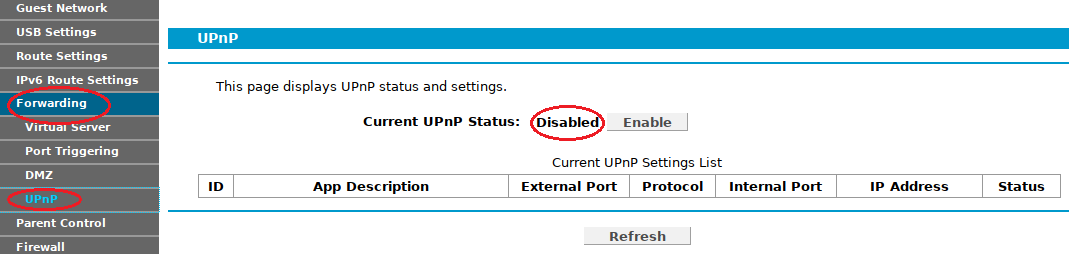
- Click on Forwarding (left-hand menu, near the middle)
- UPnP: de-select
¶ Time
Routed | VDSL | ADSL | DNS Fix | UPnP | Time | Manage Control | CWMP | Firewall ♦ Bridge | VDSL | ADSL ♦ See Also
- Click on System Tools (left-hand menu, towards the bottom)
- Select Time Settings
- Time Zone: (GMT-05:00) Eastern Time (US & Canada)
- NTP Server 1: time.nrc.ca
- Enable DST: checked
- Modify DST Start: 2nd Sunday in March
- Modify DST End: 1st Sunday in November
- Click Save
734x734px|Configuring Time Settings
¶ Manage Control
Routed | VDSL | ADSL | DNS Fix | UPnP | Time | Manage Control | CWMP | Firewall ♦ Bridge | VDSL | ADSL ♦ See Also
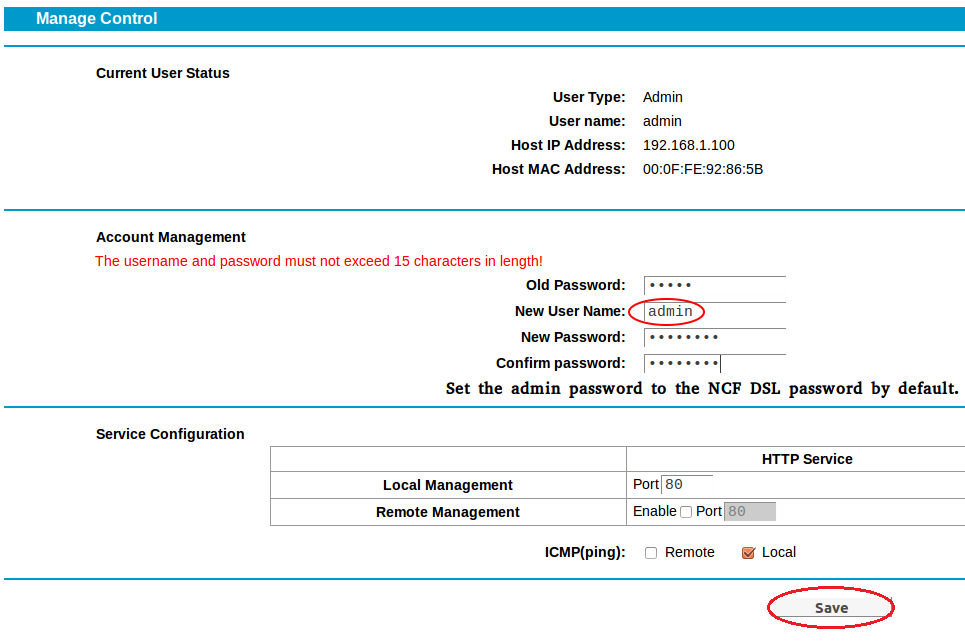
- Click on System Tools (left-hand menu, towards the bottom)
- Select Manage Control
- For the user admin we use the member’s DSL Password – user name & password should not exceed 15 characters
- Enter it once and again below to confirm
- Ensure ICMP (Ping) is set to Local only (default setting)
- Click Save
¶ CWMP
Routed | VDSL | ADSL | DNS Fix | UPnP | Time | Manage Control | CWMP | Firewall ♦ Bridge | VDSL | ADSL ♦ See Also
- Click on System Tools (left-hand menu, towards the bottom)
- Select CWMP Settings
- Ensure that CWMP is de-selected (default setting)
- Ensure that Inform is de-selected (default setting)
- Click Save
¶ Firewall
Routed | VDSL | ADSL | DNS Fix | UPnP | Time | Manage Control | CWMP | Firewall ♦ Bridge | VDSL | ADSL ♦ See Also
- Click Firewall in the left column
- Select Enable Firewall if it’s not Enabled
¶ Bridge
Routed | VDSL | ADSL | DNS Fix | UPnP | Time | Manage Control | CWMP | Firewall ♦ Bridge | VDSL | ADSL ♦ See Also
Do this only if you prefer to use your own external router rather than the one built into your TP-Link unit.
- Connect power and turn on the modem with the button on the back.
- Connect an Ethernet LAN cable to one of the yellow rear ports
- In the browser’s address bar, enter the IP address for the modem interface page: 192.168.1.1
- If the modem is fresh from the factory, use the default user name and password to gain access
- user: admin
- password: admin
If the modem was previously configured for someone, the password would be the previous user’s DSL password. If it is unknown then do a reset to factory default, press the reset/Wi-Fi button on the back. Hold for 6 to 9 seconds to reset. The user name and password will now be as above.
¶ VDSL
Routed | VDSL | ADSL | DNS Fix | UPnP | Time | Manage Control | CWMP | Firewall ♦ Bridge | VDSL | ADSL ♦ See Also
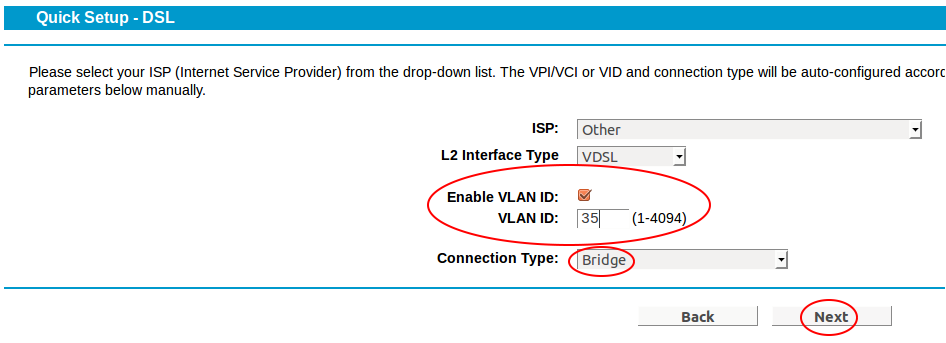
- Click on Quick Setup.
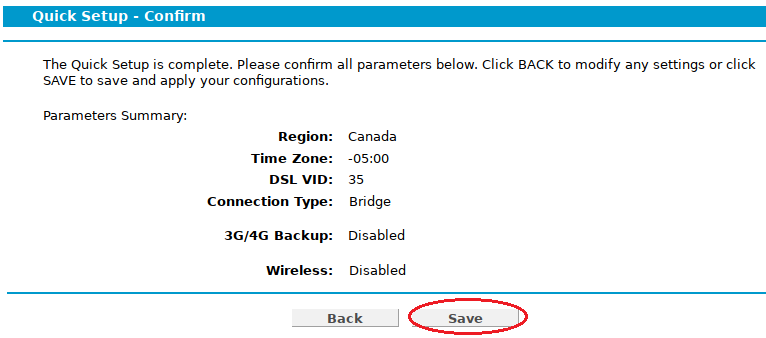
DSL
- ISP: Other
- L2 Interface Type: VDSL
- Enable VLAN ID: checked
- VLAN: 35
- Connection Type: Bridge
- Click Next
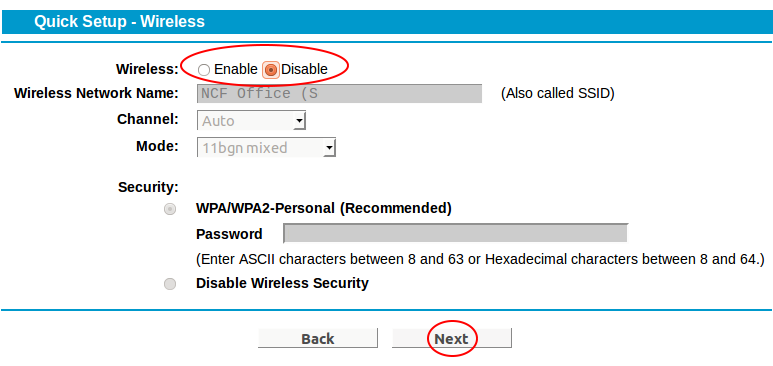
Wireless
- Wireless: Disable
- Click Next
Confirm
- Verify all setting are as entered
- Click Next
Stay logged-in
- Click Network (left-hand menu, 4th link from top)
- Click WAN Settings
- On the DSL WAN Interface page click Add
¶ ADSL
Routed | VDSL | ADSL | DNS Fix | UPnP | Time | Manage Control | CWMP | Firewall ♦ Bridge | VDSL | ADSL ♦ See Also
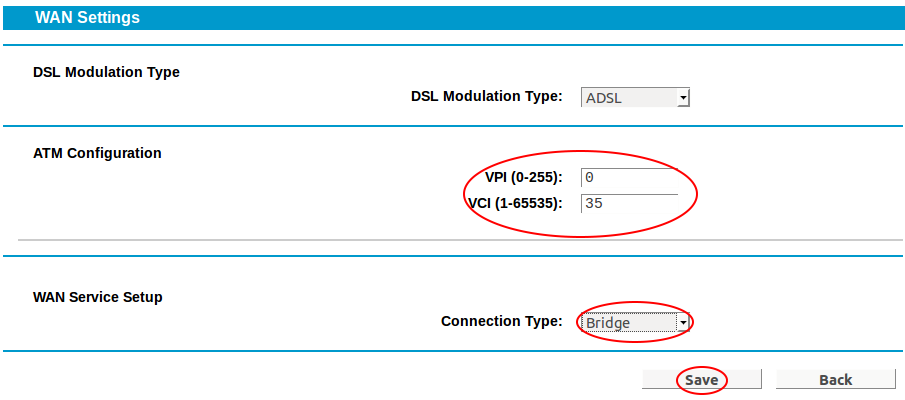
WAN Settings
- DSL Modulation Type: select ADSL
- ATM Configuration, enter…
- VPI: 0
- VCI: 35
- WAN Service Setup, enter…
- Connection Type: Bridge
- Click Save
Follow the instructions in Manage Control to secure your modem.
¶ See Also
Routed | VDSL | ADSL | DNS Fix | UPnP | Time | Manage Control | CWMP | Firewall ♦ Bridge | VDSL | ADSL ♦ See Also
- Modem Configuration - for a complete list of instructions for all NCF modems
- About TP-Link Modem Lights
- TP-Link TD-W9970 manual
- About Your TP-Link TD-W9970
- Changing WiFi Channels on TP-Link TD-W9970
- Dynamic DNS
- Modem Manuals
- Port forwarding